
Hidden Smartphone Features: 15 Amazing Tricks Most People Don’t Use
Hidden Smartphone Features can completely change how you use your device every day. Smartphones are modern marvels—pocket-sized powerhouses packed with features we rely on daily: calls, social media, photography, maps, and more. But beneath the surface of every Android or iPhone lies a treasure trove of hidden tools and functions that go unnoticed by most users.
From advanced gesture controls and secret diagnostic modes, to built-in automation tools, accessibility hacks, and security tricks, today’s smartphones are much smarter than we give them credit for. Whether you’re an Android aficionado or an iPhone devotee, chances are you’re missing out on features that could save you time, boost productivity, and enhance your user experience.
In this blog, we’ll uncover lesser-known smartphone features that most people don’t use—but absolutely should.
If you enjoy discovering useful tricks, check our guide on Smartphone Heating causes and fixes to learn how hidden settings can improve performance and efficiency: https://www.informationunboxed.com/what-is-edge-computing/
These Hidden Smartphone Features can help you unlock better productivity, privacy, and everyday convenience.
Many Hidden Smartphone Features are built into Android and iPhone settings, and learning these Hidden Smartphone Features can make daily use faster, safer, and more efficient. The best part is that these Hidden Smartphone Features work without downloading any extra apps.
Built-in Screen Recording
Available On: Android 11+, iOS 11+
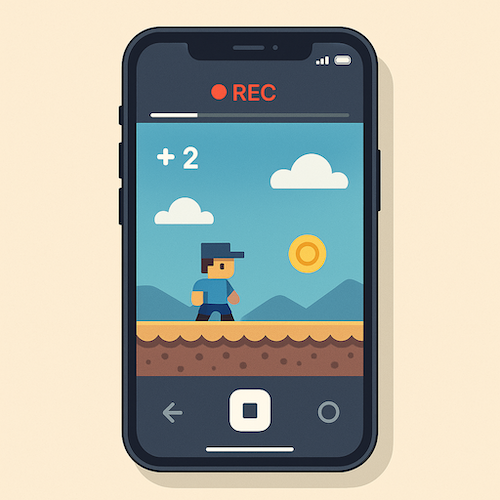
Most users don’t realize their phone can record its screen natively—no apps needed.
What you can do:
-
Record tutorials or gameplay
-
Capture glitches or issues for tech support
-
Save live streaming clips
On Android: Swipe down Quick Settings → Tap “Screen Record”
On iPhone: Control Center → Tap “Record”
Many users overlook this, but it’s one of the most useful Hidden Smartphone Features available today.
Back Tap Gestures (iPhone)
Available On: iOS 14+
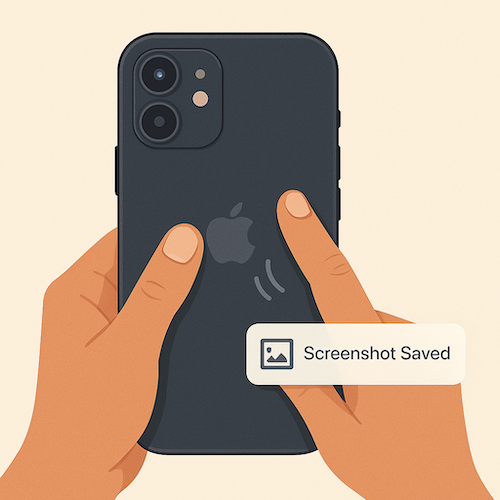
Tap the back of your iPhone two or three times to trigger actions like:
-
Taking a screenshot
-
Opening the camera
-
Launching an app
Setup:Settings > Accessibility > Touch > Back Tap
Great for quick access and one-handed use!
Back Tap is among the smartest Hidden Smartphone Features for quick one-handed access.
Lock Apps with Face/Touch ID
Available On: iOS, Android (Some UIs like MIUI, OneUI, ColorOS)
Protect apps like WhatsApp, banking apps, or your gallery using biometrics—even if the app doesn’t support it by default.
How to use:
-
iPhone: Face ID under app settings
-
Android: Settings → App Lock → Enable biometric lock
Charge Faster with Airplane Mode
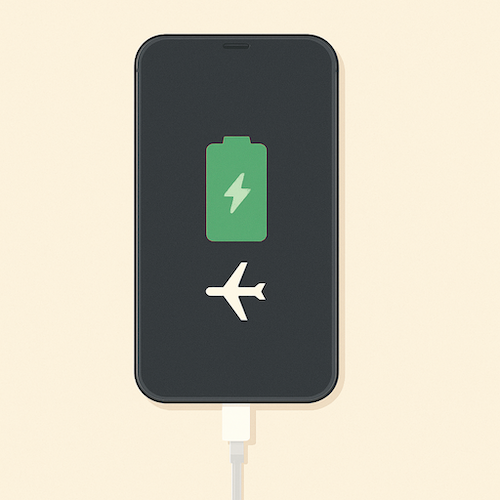
Want to juice up your phone faster in a pinch? Just turn on Airplane Mode while charging.
Why it works:
It reduces power consumption by disabling radios like cellular, Wi-Fi, and Bluetooth.
Game Mode / Focus Mode
Game Mode (Android UI variants): Enhances performance, blocks calls, and improves visuals.
Focus Mode (iOS & Android): Helps you stay productive by blocking distracting apps and notifications.
Great for students, gamers, and remote workers.
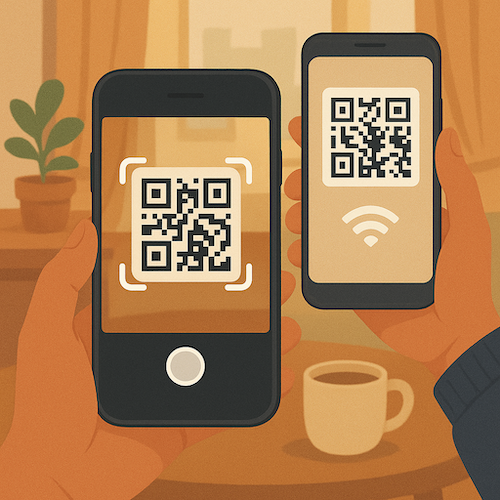
Wi-Fi Sharing via QR Code
Available On: Android 10+, iOS 13+
Instead of telling someone your Wi-Fi password, share it via QR code.
-
Android: Tap connected Wi-Fi → Share → Show QR
-
iPhone: Bring devices close → Tap the “Wi-Fi Password” prompt
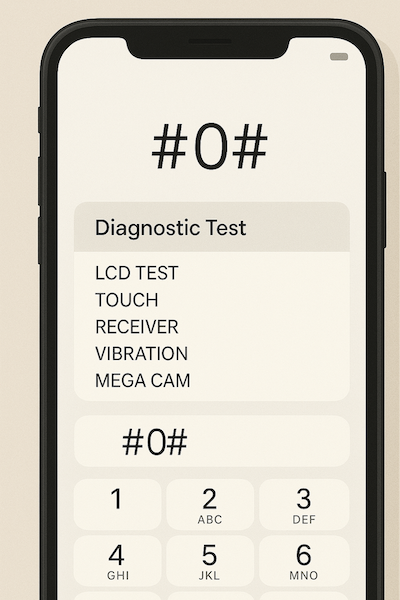
Secret Diagnostic Codes (Android)
Dial *#0*# on most Android phones to enter diagnostic mode.
Check:
-
Touch screen
-
Sensors
-
Speaker/mic
-
Display
Use with caution! This is for testing, not playing around.
Live Text & Image Search
Available On: iOS 15+, Android (via Google Lens)
Take a photo of text and interact with it:
-
Copy, paste, call numbers
-
Translate instantly
-
Look up products
Perfect for translating menus, copying handwritten notes, or grabbing URLs.
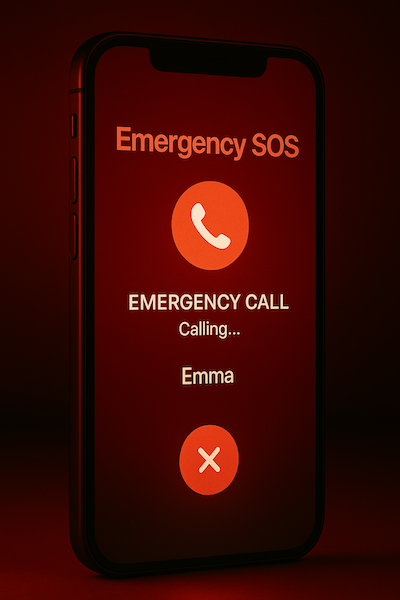
Emergency SOS Features
Smartphones come with emergency-trigger features that can alert contacts, call for help, and even record evidence.
Example:
-
iPhone: Press power 5 times → Call emergency, send location
-
Samsung: Power + volume → Send location, record audio/video
According to official safety guidance from Apple Support, Emergency SOS can quickly contact help and share your location during urgent situations.
Safety tools like this are powerful Hidden Smartphone Features that can make a real difference in emergencies.
Hide Photos or Files Natively
-
iPhone: Photos → Select → Hide
-
Android: File manager → Move to Secure Folder / Locked Folder (Pixel)
Keep sensitive documents or private photos safe—without third-party apps.
One-Handed Mode
Large phone? Use one-handed mode to shrink the screen for easier navigation.
-
Android: Settings → Gestures → One-handed mode
-
iPhone: Swipe down on bottom edge (Reachability)
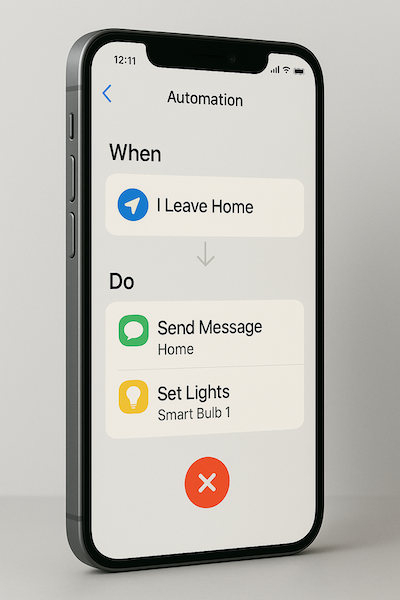
Built-in Automation Tools
-
iPhone: Shortcuts app – automate daily tasks (like sending a message when you leave home)
-
Android: Google Routines / Bixby Routines / Tasker
Automate brightness, alarms, Do Not Disturb, or location-based actions.
Offline Maps for Navigation
In Google Maps or Apple Maps, download a city or region to use without internet.
Lifesaver when traveling or during patchy signal zones.
Google’s official Maps help page explains how offline maps work and why they’re useful for travel: https://support.google.com/maps/answer/6291838
Hidden Camera Features
-
Use the volume button as a shutter
-
Burst mode for action shots
-
Manual mode (Pro mode) for DSLR-like controls
Try out slow-mo, time-lapse, or astrophotography—many are built-in.
Digital Wellbeing Tools
Track how often you unlock your phone, limit app usage, and reduce screen time.
-
iPhone: Screen Time
-
Android: Digital Wellbeing → Dashboard
Helps build healthier tech habits.
Conclusion: Unlock Your Smartphone’s Full Potential
Exploring Hidden Smartphone Features can completely transform how you use your device every day. These hidden smartphone tools aren’t just cool—they can make your phone smarter, safer, and more efficient.
The next time you unlock your device, take a few minutes to explore its Settings and native apps. You might just discover a feature that changes the way you use your phone every day.




Leave a Reply
Want to join the discussion?Feel free to contribute!