
Apps Draining Battery? 11 Easy Ways to Find and Fix Them
Apps draining battery in the background can make your phone feel old, slow, and unreliable. You charge your phone fully, use it normally, and still see the battery percentage dropping faster than expected. The confusing part is that sometimes the problem is not the phone itself — it is one or two apps silently using power in the background.
Your phone already has built-in tools to show which apps are using the most battery. Android lets you check battery usage by app and restrict high-usage apps, while iPhone shows battery usage, background activity, and battery insights inside Settings. Apple also explains that “Background Activity” means an app used battery while running in the background, such as playing audio or tracking location.
In this guide, you will learn how to find apps draining battery on Android and iPhone, why some apps use more power than others, and what you should do to fix battery drain without deleting everything from your phone.
Why Do Apps Drain Battery So Fast?
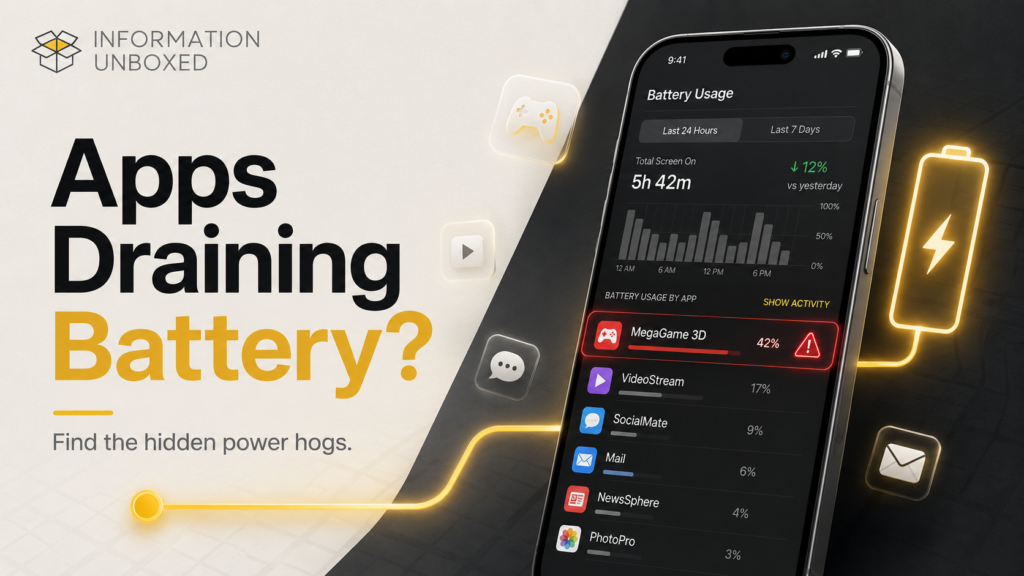
Apps drain battery when they keep using phone resources like the internet, location, screen, camera, microphone, notifications, background refresh, or Bluetooth. Some battery use is normal. For example, Maps needs GPS, YouTube needs screen and internet, and WhatsApp needs notifications. The problem starts when an app uses too much battery even when you are not actively using it.
Common reasons apps drain battery include:
- Background activity
- Location tracking
- Too many notifications
- Auto-sync
- Poor network usage
- Buggy app updates
- Heavy camera or video use
- Social media auto-play
- Unused apps running silently
- Apps with unnecessary permissions
The goal is not to stop every app from running. The goal is to identify which apps are using more battery than they should.
For more practical battery-saving tips, read our guide on boosting phone battery life without extra apps.
1. Check Battery Usage on Android
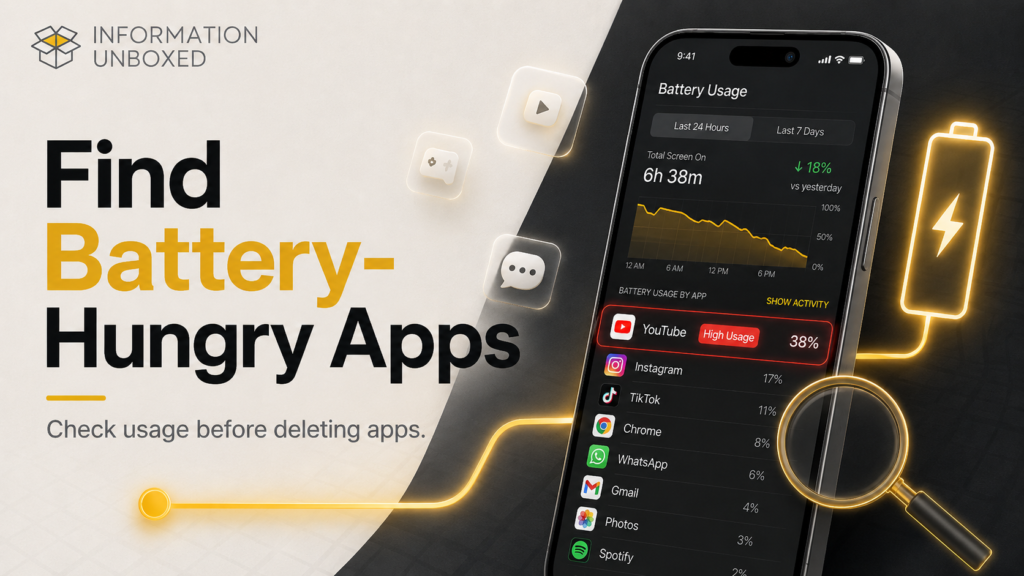
The fastest way to find battery-draining apps on Android is to check battery usage by app.
How to Check Battery Usage on Android
Go to:
Settings > Battery > Battery Usage
On some Android phones, you may see options like View by apps, Battery usage by app, or App battery usage. On Pixel phones, Google says users can open Battery usage, tap “View by apps,” and review or change how a listed app uses battery. Google also recommends keeping apps on “Optimized” where available.
What to Look For
Look for apps that:
- Use high battery even when you barely opened them
- Show high background usage
- Use GPS or mobile data for long periods
- Appear at the top repeatedly every day
- Are unknown or rarely used
If a social media, shopping, weather, fitness, maps, or unknown app appears unusually high, that app may be causing battery drain.
2. Check Battery Usage on iPhone
iPhone also makes it easy to find apps using too much battery.
You can read Apple’s official guide on checking iPhone battery usage here: https://support.apple.com/en-us/102432
How to Check Battery Usage on iPhone
Go to:
Settings > Battery
Apple’s Battery screen can show battery usage by app, daily usage, and suggestions if available. Apple also explains that if an app shows “Background Activity,” it means much of that app’s battery usage happened while it was active in the background.
What to Look For
Check apps with:
- High battery percentage
- High background activity
- Unusual screen-off usage
- Location-based activity
- Apps you rarely use but still consume power
If an app is using a lot of battery in the background, you can reduce its background access, location access, notifications, or usage.
3. Find Apps Running in the Background
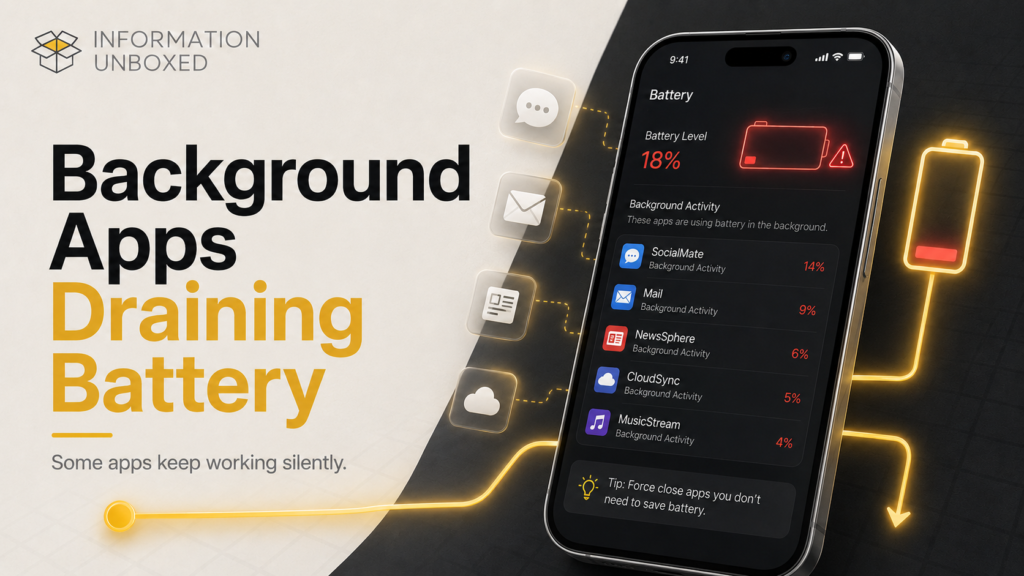
Some apps keep working even after you close them. This is normal for messaging, music, maps, fitness, delivery, and email apps. But unnecessary background activity can drain battery quickly.
On Android
Go to:
Settings > Apps > Select App > Battery
Choose options like:
- Optimized
- Restricted
- Unrestricted
Exact wording may vary by phone brand.
On iPhone
Go to:
Settings > General > Background App Refresh
Turn off Background App Refresh for apps that do not need to update in the background.
You can keep it on for essential apps like email, WhatsApp, or calendar, but turn it off for shopping apps, games, random tools, or apps you rarely use.
4. Check Location Access
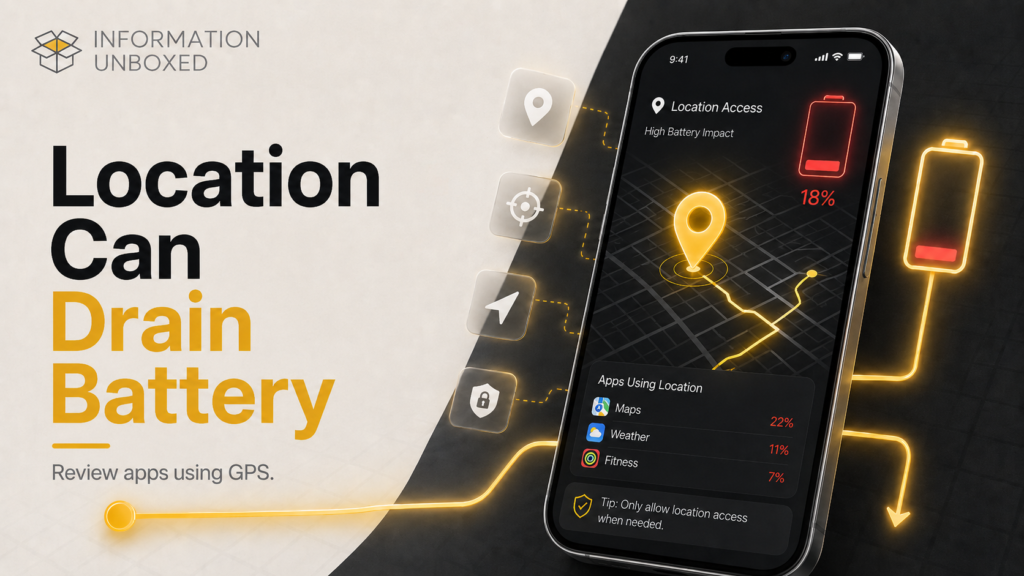
Location is one of the biggest battery users. Apps like Google Maps, Uber, weather, fitness trackers, food delivery apps, and social media apps may use location in the background.
On Android
Go to:
Settings > Location > App location permissions
Change unnecessary apps to:
- Allow only while using the app
- Ask every time
- Don’t allow
On iPhone
Go to:
Settings > Privacy & Security > Location Services
Review apps set to Always. Change them to While Using the App if they do not need constant access.
This is especially important for apps that do not truly need location, such as shopping apps, editing apps, games, or random utility apps.
5. Check Apps Using Too Much Mobile Data
Battery drain and data usage often go together. If an app constantly uses mobile data in the background, it can also consume battery.
On Android
Go to:
Settings > Network & Internet > SIMs > App data usage
or search Data usage in Settings.
On iPhone
Go to:
Settings > Cellular
Scroll down and check which apps are using mobile data.
If an app is using too much data and battery, restrict background data or uninstall it if you do not need it.
6. Check Notifications
Too many notifications can drain battery because they wake the screen, trigger vibration, use background data, and keep apps active.
Apps that often cause notification overload:
- Shopping apps
- Food delivery apps
- News apps
- Social media apps
- Games
- Finance/offer apps
- Promotional apps
What to Do
Turn off unnecessary notifications.
On Android:
Settings > Notifications > App notifications
On iPhone:
Settings > Notifications
Keep important alerts. Turn off promotional, marketing, and unnecessary app notifications.
7. Look for Recently Installed Apps
If battery drain started suddenly, think about what changed recently.
Ask yourself:
- Did I install a new app?
- Did I update an app?
- Did I install a game?
- Did I allow location access?
- Did I enable widgets?
- Did I add a new email account?
- Did I start using a fitness or tracking app?
A newly installed or recently updated app can sometimes cause unexpected battery drain.
Quick Fix
Uninstall the new app temporarily and check battery performance for 24 hours.
If battery improves, that app was likely the issue.
8. Check for Unknown or Suspicious Apps
Unknown apps can drain battery, use data, or run in the background without your knowledge. On Android, Google Play Protect checks apps and devices for harmful behavior, including safety checks before downloading apps from Google Play.
On Android
Go to:
Play Store > Profile icon > Play Protect > Scan
Also check:
Settings > Apps > See all apps
Remove apps you do not recognize after confirming they are not system apps.
On iPhone
Go to:
Settings > General > iPhone Storage
Review installed apps and delete apps you do not use.
9. Use Battery Saver or Low Power Mode
Battery saver modes help reduce power usage when your phone is low on battery.
Android
Google says Android users can improve battery life by choosing settings that use less battery, restricting apps with high battery use, turning on Adaptive Battery, reducing brightness, and using other battery-saving options depending on the device.
iPhone
Apple says Low Power Mode reduces the amount of power your iPhone or iPad uses by affecting features like background activity, display brightness, Auto-Lock, downloads, and some visual effects.
To turn it on:
Settings > Battery > Low Power Mode
On newer iPhone models, Apple may show Power Mode inside Battery settings.
10. Update or Reinstall Problem Apps
Sometimes an app drains battery because of a bug. Developers often fix such issues in updates.
What to Do
- Update the app
- Restart your phone
- Clear cache on Android
- Reinstall the app
- Check recent reviews in the app store
- Replace the app with a lighter alternative
If an app keeps draining battery after updates, uninstall it or restrict its background usage.
11. Don’t Blame Apps Too Quickly
Sometimes apps are not the main problem. Battery drain can also happen due to:
- Old battery health
- Poor mobile network
- High screen brightness
- Hot weather
- 5G/mobile data usage
- Gaming
- Video recording
- Long video calls
- Too many widgets
- System update indexing
- Weak Wi-Fi or signal switching
On iPhone, Apple explains that battery health and chemical aging affect performance over time, and iPhone includes battery health information in Settings.
If your phone is old and battery health is poor, even normal apps may seem like they are draining too much battery.
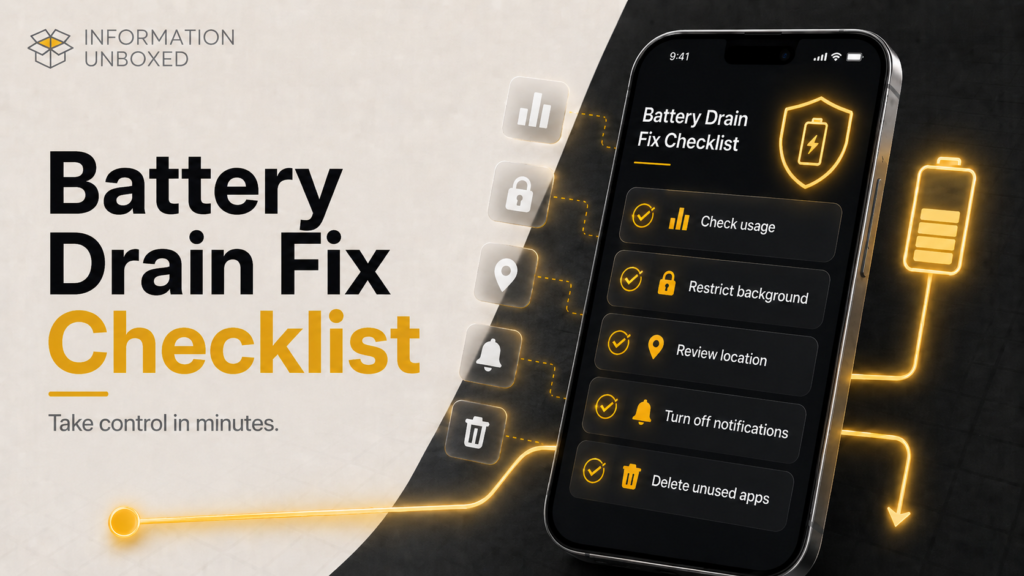
Android Checklist: How to Find Battery-Draining Apps
Use this quick Android checklist:
- Go to Settings > Battery > Battery Usage
- Check apps using the most battery
- Tap suspicious apps
- Set battery usage to Optimized or Restricted
- Review location permissions
- Turn off unnecessary notifications
- Restrict background data
- Run Play Protect
- Uninstall apps you do not use
- Restart your phone and monitor for 24 hours
iPhone Checklist: How to Find Battery-Draining Apps
Use this quick iPhone checklist:
- Go to Settings > Battery
- Check battery usage by app
- Look for background activity
- Turn off Background App Refresh for unnecessary apps
- Review Location Services
- Turn off unnecessary notifications
- Enable Low Power Mode when needed
- Delete unused apps
- Update iOS and apps
- Check Battery Health
Apps That Commonly Drain Battery
These app categories often use more battery:
| App Type | Why It Drains Battery |
|---|---|
| Maps and navigation | GPS, screen, mobile data |
| Social media | Auto-play videos, notifications, background refresh |
| Games | Graphics, processor, internet |
| Video apps | Screen, speakers, internet |
| Fitness apps | Location, motion tracking, sensors |
| Weather apps | Location updates |
| Shopping apps | Notifications, tracking, background data |
| Messaging apps | Notifications, calls, media downloads |
| Camera apps | Camera, screen, processing |
| Unknown apps | Possible background activity or permissions |
This does not mean these apps are bad. It means they need proper settings.
Best Fixes for Apps Draining Battery
Try these fixes in order:
1. Restrict Background Activity
Limit background usage for apps you do not need constantly.
2. Change Location Permission
Use While Using the App instead of Always where possible.
3. Turn Off Background Refresh
Disable background refresh for non-essential apps.
4. Disable Unnecessary Notifications
Fewer notifications mean fewer wake-ups.
5. Update the App
A battery bug may already be fixed in the latest version.
6. Clear Cache on Android
For Android users, clearing cache may help if an app is behaving badly.
7. Reinstall the App
A fresh install can fix corrupted app data.
8. Delete Apps You Don’t Use
Unused apps should not quietly use battery, data, or storage.
9. Restart Your Phone
A simple restart can stop stuck background processes.
10. Update Your Phone
System updates often include battery and performance improvements.
When Should You Uninstall an App?
Uninstall an app if:
- You do not recognize it
- It drains battery daily
- It uses location without reason
- It sends too many notifications
- It uses too much background data
- It asks for unnecessary permissions
- It has poor reviews about battery drain
- You rarely use it
If an app is important but drains battery, restrict it instead of deleting it.
Mistakes That Make Battery Drain Worse
Avoid these mistakes:
- Installing random battery saver apps
- Giving location access to every app
- Keeping too many apps running unrestricted
- Ignoring battery usage reports
- Leaving screen brightness high all day
- Keeping Bluetooth, hotspot, GPS, or mobile data on unnecessarily
- Not updating apps
- Using heavy live wallpapers
- Ignoring poor battery health
- Downloading APKs from unknown websites
Most “battery booster” apps are unnecessary because Android and iPhone already include built-in battery tools.
Final Thoughts
Apps draining battery can make your phone feel frustrating, but the fix usually starts with one simple step: check battery usage. Your Android phone or iPhone already shows which apps use the most battery, which apps run in the background, and which apps may need restrictions.
Start with the basics. Check battery usage, review background activity, limit location access, turn off unnecessary notifications, update apps, and delete apps you no longer use. If one app keeps appearing at the top every day, that is your biggest clue.
You do not need random battery booster apps. You just need to find the real battery-hungry apps and control what they are allowed to do in the background.
FAQs
1. How do I know which app is draining my battery?
On Android, go to Settings > Battery > Battery Usage. On iPhone, go to Settings > Battery. Check which apps use the highest battery percentage and whether they show background activity.
2. Why is my phone battery draining when I am not using it?
Your battery may drain due to background apps, location tracking, notifications, poor network, data syncing, widgets, or battery health issues.
3. Should I close all apps to save battery?
Not always. Constantly closing and reopening apps may not help much. It is better to restrict background activity, reduce location access, and turn off unnecessary notifications.
4. Which apps usually drain the most battery?
Maps, games, video apps, social media, fitness apps, camera apps, and apps using location or background data usually consume more battery.
5. Does Low Power Mode help?
Yes. Low Power Mode on iPhone and Battery Saver on Android can reduce background activity and power usage when your battery is low. Apple says Low Power Mode reduces power usage by affecting features like background activity and display brightness.
6. Can unknown apps drain battery?
Yes. Unknown or suspicious apps can use battery, data, permissions, and background processes. Android users should run Google Play Protect to scan for harmful apps.
7. Should I uninstall apps that drain battery?
Uninstall apps you do not use, do not recognize, or do not trust. For important apps, try restricting background activity, reducing notifications, or changing location access first.



Leave a Reply
Want to join the discussion?Feel free to contribute!