
12 Essential WhatsApp Privacy Settings You Should Change Today
WhatsApp privacy settings are important because your profile information, online activity, groups, calls, and account security can reveal more than you realize. Whether you use WhatsApp for personal chats, family groups, business communication, or payments, a few simple privacy changes can help you stay safer.
The good news is that WhatsApp gives users several built-in privacy and security controls. You can manage who sees your profile photo, last seen, online status, status updates, live location, and who can add you to groups. WhatsApp also offers features like Privacy Checkup, two-step verification, and silence unknown callers to improve account safety.
In this guide, we’ll cover the WhatsApp privacy settings you should change today to protect your data, reduce unwanted messages, avoid spam calls, and make your WhatsApp account more secure.
If you are also improving your phone’s privacy and performance, you may also like our guide on Tips to Improve Phone Battery Life.
Why You Should Review Your WhatsApp Privacy Settings
Many people install WhatsApp and never check the privacy settings again. But over time, your phone number may get added to unknown groups, spam callers may contact you, or strangers may see your profile details.
By reviewing your settings, you can control:
- Who can see your profile photo
- Who can view your last seen and online status
- Who can add you to groups
- Who can see your status updates
- Whether unknown callers can disturb you
- Whether your account has extra login protection
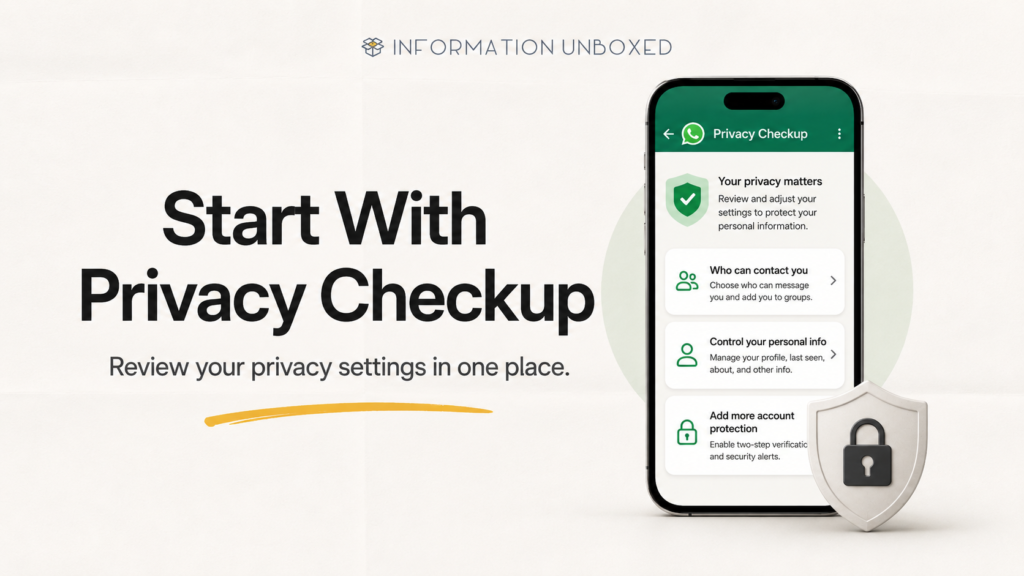
WhatsApp also has a dedicated Privacy Checkup feature that helps users review important privacy controls in one place, including contact permissions, unknown callers, and account protection options.
1. Start With WhatsApp Privacy Checkup
The easiest way to review your WhatsApp privacy settings is by using Privacy Checkup.
This feature guides you through important privacy options, including who can contact you, who can see your personal information, and how to add extra protection to your account.
How to use Privacy Checkup:
Open WhatsApp → Settings → Privacy → Start Checkup
From here, you can review different privacy settings step by step.
Why this matters:
Privacy Checkup is useful because it brings many important settings together instead of making you search for each option separately.
2. Hide Your Last Seen and Online Status
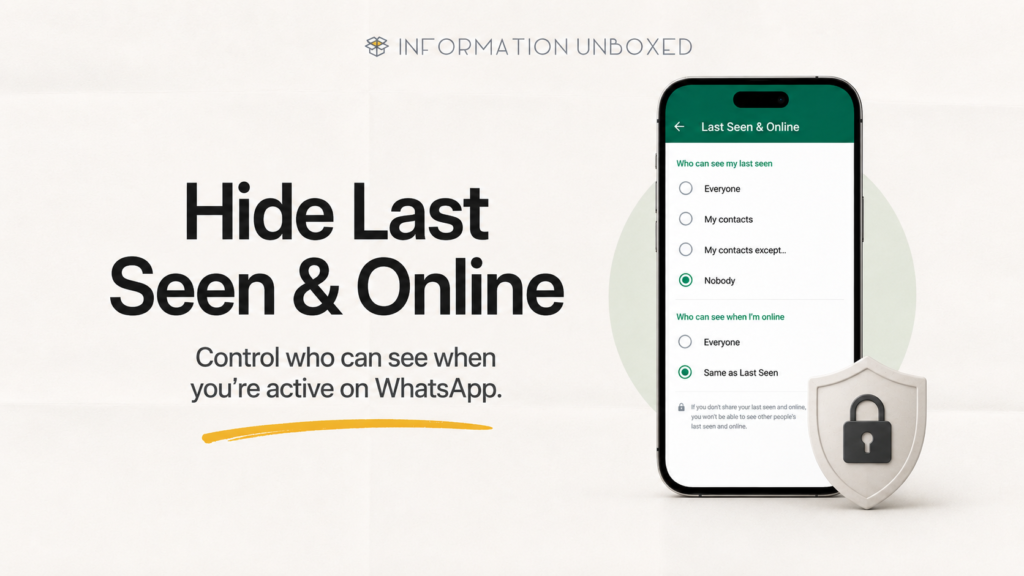
Your “Last Seen” and “Online” status can reveal when you are active on WhatsApp. This may not seem like a big deal, but it can affect your privacy, especially if you don’t want everyone to know when you were last active.
Recommended setting:
Set Last Seen to:
My Contacts or Nobody
Set Online status to:
Same as Last Seen
How to change it:
WhatsApp → Settings → Privacy → Last Seen & Online
Best option for privacy:
If you want better privacy, choose Nobody for Last Seen and Same as Last Seen for Online.
This helps prevent strangers or unnecessary contacts from tracking your activity.
3. Limit Who Can See Your Profile Photo
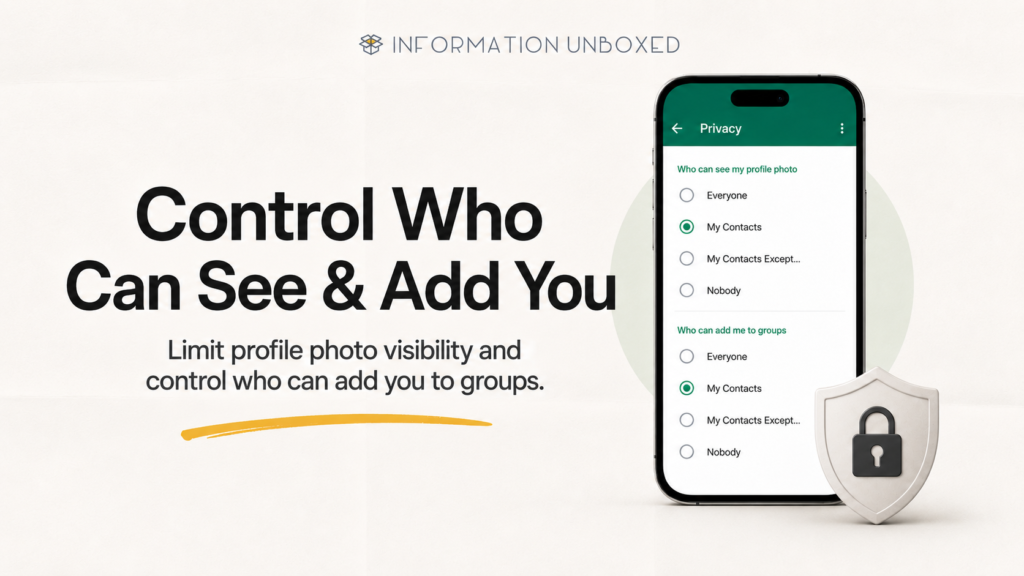
Your WhatsApp profile photo may be visible to people who have your number. If your profile photo is personal, it is better to restrict who can see it.
Recommended setting:
My Contacts or My Contacts Except…
How to change it:
WhatsApp → Settings → Privacy → Profile Photo
Best option:
Choose My Contacts if you only want saved contacts to see your photo.
Choose My Contacts Except… if you want to hide it from specific people.
This is one of the simplest WhatsApp privacy settings you should change today.
4. Control Who Can Add You to Groups
Random WhatsApp groups can be annoying and sometimes risky. Unknown groups may include spam messages, fake links, promotional content, or scams.
WhatsApp allows you to control who can add you to groups through group privacy settings.
Recommended setting:
My Contacts or My Contacts Except…
How to change it:
WhatsApp → Settings → Privacy → Groups
Best option:
Choose My Contacts Except… and exclude people who often add you to unnecessary groups.
This prevents random people from adding you directly to unknown groups.
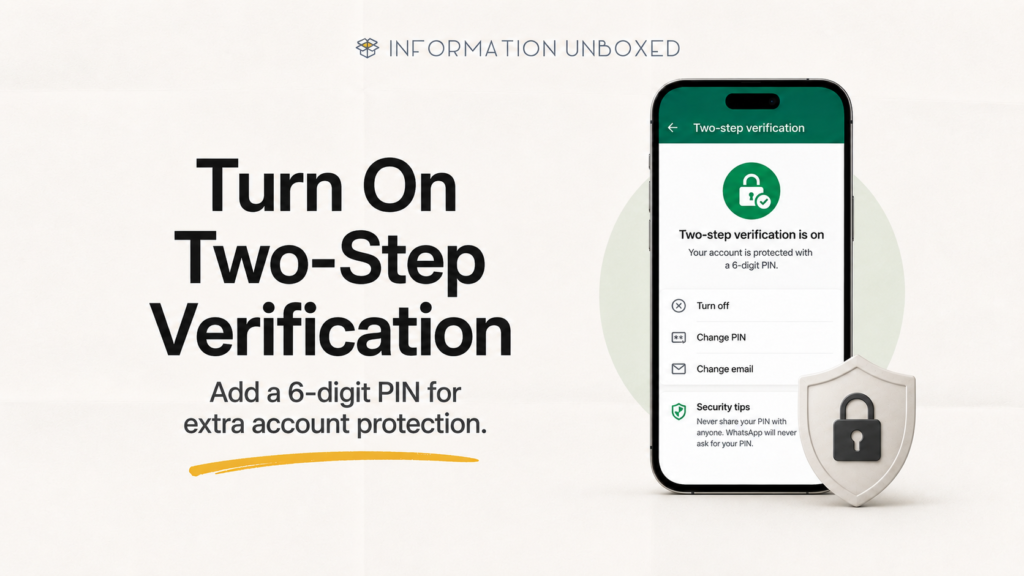
5. Turn On Two-Step Verification
Two-step verification is one of the most important WhatsApp security settings.
It adds an extra layer of protection to your WhatsApp account by requiring a six-digit PIN when registering your phone number again on WhatsApp. WhatsApp describes two-step verification as an optional feature that adds more security to your account.
How to enable two-step verification:
WhatsApp → Settings → Account → Two-step verification → Turn on
You will need to create a six-digit PIN. WhatsApp also allows you to add an email address, which can help you reset the PIN if you forget it.
Why this matters:
If someone tries to register your WhatsApp number on another phone, two-step verification adds extra protection.
This is a must-change setting for every WhatsApp user.
6. Silence Unknown Callers
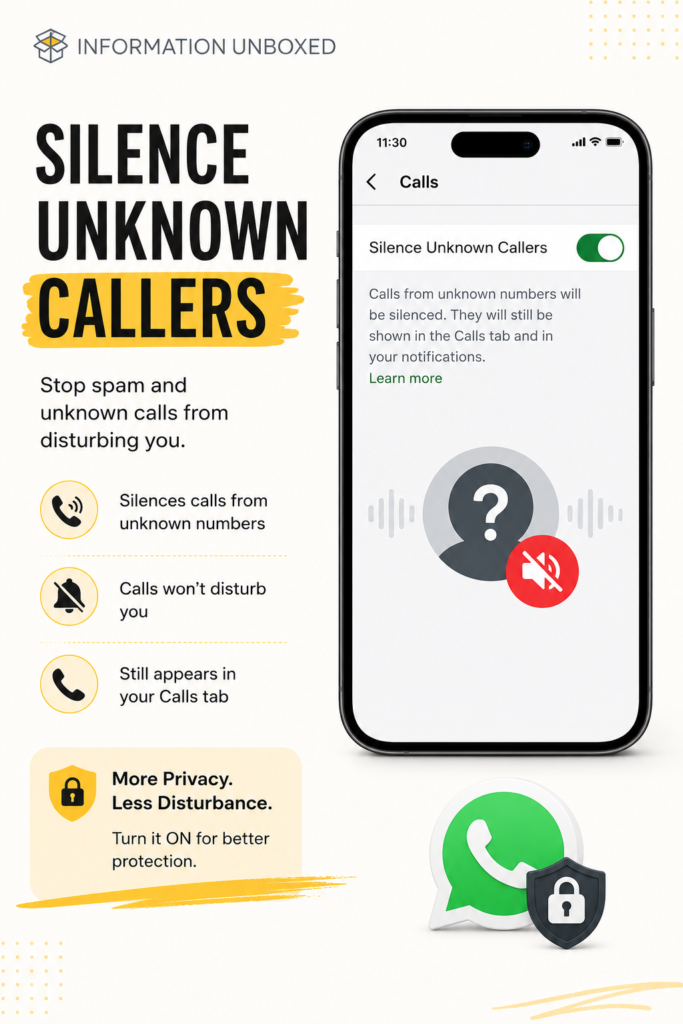
Spam calls on WhatsApp are increasing. Unknown callers can disturb you, waste your time, or even be part of scam attempts.
WhatsApp lets you silence unknown callers, which helps reduce unwanted interruptions. The calls may still appear in your calls tab, but they won’t disturb you like normal incoming calls. WhatsApp’s Privacy Checkup also includes options to manage unwanted calls and messages.
How to enable it:
WhatsApp → Settings → Privacy → Calls → Silence Unknown Callers
Recommended setting:
Turn it ON
This is especially useful if your number is shared in business groups, online platforms, or public directories.
7. Review Your Status Privacy
Your WhatsApp Status can reveal personal updates, travel plans, family moments, or daily activities. Not everyone in your contact list needs to see it.
Recommended setting:
My Contacts Except… or Only Share With…
How to change it:
WhatsApp → Settings → Privacy → Status
Best option:
Use Only Share With… if you want to share status updates only with close friends or family.
This gives you better control over who sees your updates.
8. Turn Off Live Location Sharing When Not Needed
Live Location is useful when you want to share your real-time location with someone. But if you forget to turn it off, it can continue sharing your movement for the selected duration.
WhatsApp privacy settings allow users to manage live location visibility.
How to check live location:
WhatsApp → Settings → Privacy → Live Location
If you see an active live location session, stop sharing it when it is no longer needed.
Why this matters:
Your live location is sensitive information. Only share it with trusted people and only when necessary.
9. Manage Read Receipts
Read Receipts show blue ticks when you read someone’s message.
If you prefer more privacy, you can turn them off.
How to change it:
WhatsApp → Settings → Privacy → Read Receipts
Important note:
If you turn off read receipts, you also won’t be able to see read receipts from others.
Also, read receipts may still apply in group chats.
This setting is useful if you don’t want people to know exactly when you read their messages.
10. Block Unknown Account Messages
If you receive a high volume of unknown messages, WhatsApp has an advanced privacy option to block unknown account messages. According to WhatsApp Help, this option is available under Settings → Privacy → Advanced.
How to enable it:
WhatsApp → Settings → Privacy → Advanced → Block unknown account messages
Why this helps:
It can reduce unwanted messages from unknown accounts, especially when your number is exposed publicly or added to multiple groups.
11. Check Linked Devices Regularly
WhatsApp Web and Linked Devices are useful, but you should regularly check if your account is connected to any device you don’t recognize.
How to check linked devices:
WhatsApp → Settings → Linked Devices
If you see an unknown device, log it out immediately.
Why this matters:
If someone gets access to your WhatsApp on another device, they may be able to view your chats and activity. Make it a habit to check linked devices regularly.
12. Be Careful With Unknown Links and Files
Even with strong privacy settings, you still need to be careful with suspicious messages.
Avoid clicking:
- Unknown links
- Fake offers
- Lottery messages
- Bank verification links
- APK files
- “Forward this to claim reward” messages
WhatsApp privacy settings can reduce risk, but your own awareness is equally important.
Best WhatsApp Privacy Settings to Use
Here is a quick summary of the recommended settings:
| WhatsApp Setting | Recommended Option |
|---|---|
| Last Seen | Nobody or My Contacts |
| Online Status | Same as Last Seen |
| Profile Photo | My Contacts |
| About | My Contacts |
| Groups | My Contacts or My Contacts Except |
| Status | Only Share With or My Contacts Except |
| Two-Step Verification | ON |
| Silence Unknown Callers | ON |
| Read Receipts | Optional |
| Live Location | Turn off when not needed |
| Linked Devices | Review regularly |
Frequently Asked Questions
What are the best WhatsApp privacy settings?
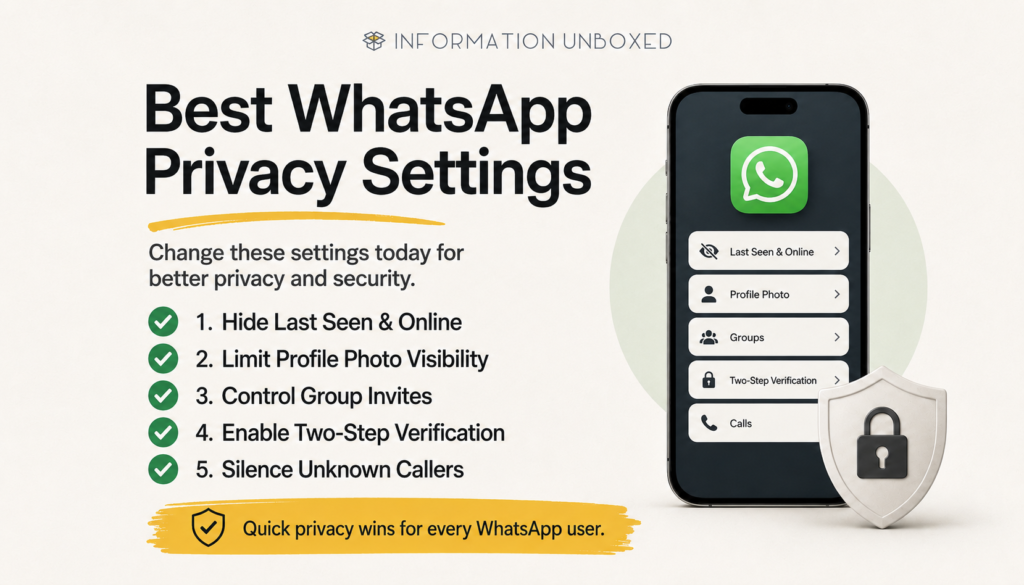
The best WhatsApp privacy settings include hiding your last seen and online status, limiting your profile photo to contacts, enabling two-step verification, controlling who can add you to groups, silencing unknown callers, and reviewing linked devices regularly.
Should I turn on two-step verification on WhatsApp?
Yes. Two-step verification adds extra security to your WhatsApp account by requiring a six-digit PIN when registering your phone number again. It is one of the most important WhatsApp security settings.
Can strangers see my WhatsApp profile photo?
This depends on your privacy settings. You can limit your profile photo visibility by going to WhatsApp → Settings → Privacy → Profile Photo and selecting My Contacts or My Contacts Except.
How do I stop unknown people from adding me to WhatsApp groups?
Go to WhatsApp → Settings → Privacy → Groups and choose My Contacts or My Contacts Except. This helps prevent unknown people from directly adding you to unwanted groups.
How do I stop unknown callers on WhatsApp?
Go to WhatsApp → Settings → Privacy → Calls → Silence Unknown Callers and turn it ON.
Final Thoughts
WhatsApp is used daily for personal chats, family groups, business conversations, and even payments. That is why reviewing your WhatsApp privacy settings is important.
Start with Privacy Checkup, hide your last seen and online status, limit who can see your profile photo, control group invites, enable two-step verification, and silence unknown callers. These small changes can make your WhatsApp account much safer and more private.
If you use WhatsApp every day, don’t ignore these settings. Review them today and protect your personal information before it is exposed.




Leave a Reply
Want to join the discussion?Feel free to contribute!