
Optimizing Your Phone: Clear Cache for Better Speed
Clear cache on your iPhone regularly to improve speed, free up storage, and fix app performance issues. Over time, your iPhone accumulates cached data from apps, websites, and system processes, which can slow down performance, take up valuable storage, and cause apps to misbehave. When you clear cache regularly, your iPhone can remove unnecessary temporary files and perform more smoothly.
Unlike traditional computers, iPhones don’t have a single “clear cache” button, so different methods are required depending on the type of cache you want to remove. Whether you want to clear Safari’s browsing data, free up storage from app caches, or reset system memory, this guide will walk you through the best ways to keep your iPhone optimized.

Clearing Safari Cache
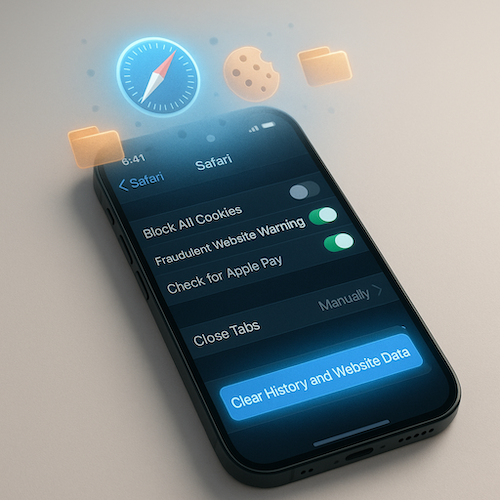
Safari, the default web browser on iPhones, stores cached files, cookies, and history to enhance browsing speed. However, too much stored data can slow things down. To clear Safari’s cache:
- Open Settings and scroll down to Safari.
- Tap Clear History and Website Data.
- Confirm by selecting Clear History and Data.
This removes cached site data and cookies, but it will also log you out of websites, so keep that in mind. It is one of the easiest ways to clear cache on iPhone because Safari stores website files, cookies, and browsing data over time.
Clearing App Cache
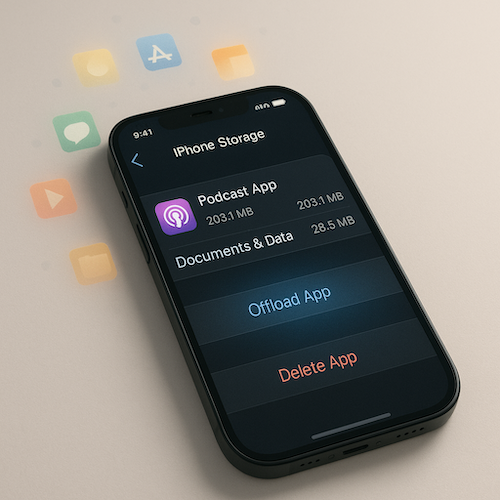
Most iPhone apps store temporary data to improve user experience, but over time, these files can occupy significant space. Unfortunately, iOS doesn’t allow manual cache clearing for every app. However, you can free up space using these methods:
- Offload Unused Apps: Go to Settings > General > iPhone Storage, select an app, and tap Offload App to remove the app while retaining its data.
- Reinstall Apps: If an app is consuming too much storage, deleting and reinstalling it is an effective way to clear cache.
- Check In-App Settings: Some apps, like Instagram or WhatsApp, have built-in cache-clearing options under their settings.
If an app becomes slow or takes too much storage, you may need to clear cache by offloading, reinstalling, or checking the app’s own storage settings.
If you want to clear cache safely on your iPhone, Apple’s official guide on https://support.apple.com/en-us/105082 clearing Safari history, cache, and cookies on iPhone explains the correct steps for Safari data. For more simple smartphone fixes and useful guides, you can also visit our Tech Tips section on Information Unboxed.
Restarting Your iPhone to Clear System Cache
A simple restart can clear temporary system cache and refresh background processes:
- For iPhones with Face ID, press and hold the Side Button + Volume Up/Down, then slide to power off.
- For older models, press and hold the Power Button until the shutdown slider appears.
- Wait a few seconds before turning it back on.
Restarting your iPhone clears background memory and improves performance without deleting any important data.

Using Third-Party Cleaning Apps
While iOS does a great job managing storage, third-party apps like Cleaner Pro, iMyFone Umate, or PhoneClean can help remove junk files and optimize storage. However, always use trusted apps to avoid privacy risks.
FAQs
1. How often should I clear cache on my iPhone?
You do not need to clear cache every day. Clearing cache once every few weeks or whenever your iPhone feels slow, apps lag, or Safari does not load pages properly is enough for most users.
2. Does clear cache delete photos or messages?
No, clearing cache usually does not delete your photos, messages, contacts, or personal files. However, if you clear Safari cache, you may be logged out of some websites because cookies and website data are removed.
3. Can I clear cache for all iPhone apps at once?
No, iPhone does not offer one button to clear cache for all apps. You can clear cache for some apps through their in-app settings, offload unused apps, or delete and reinstall apps that are using too much storage.
4. What is the easiest way to clear cache on iPhone?
The easiest way to clear cache on iPhone is to clear Safari history and website data from Settings. You can also restart your iPhone to refresh temporary system memory.
5. Will my iPhone become faster if I clear cache?
Yes, clearing cache can help your iPhone feel faster, especially if Safari, apps, or storage-heavy files are causing slow performance. It may also free up storage and fix small app issues.
Conclusion
Regularly clearing cache on your iPhone enhances performance, frees up storage, and keeps your device running efficiently. Whether you clear Safari’s data, offload apps, or simply restart your phone, these small steps ensure a smoother and faster iPhone experience. When you clear cache from Safari, apps, and temporary system memory, your iPhone can feel faster and more responsive. Keeping your device optimized will help maintain its longevity and responsiveness over time.





Leave a Reply
Want to join the discussion?Feel free to contribute!