
How to Check if Your Phone Is Being Tracked: 12 Warning Signs
Check if your phone is being tracked before it becomes a serious privacy problem. Your smartphone carries your location, messages, photos, contacts, banking apps, emails, and personal conversations. If someone gets access to your device, account, or location settings, they may be able to monitor more than you realize.
Phone tracking does not always mean a hacker is sitting somewhere watching your screen. Sometimes it can be as simple as location sharing being turned on, a suspicious app having too many permissions, an unknown device connected to your account, a hidden Bluetooth tracker moving with you, or stalkerware installed by someone who had physical access to your phone.
In this guide, you will learn how to check if your phone is being tracked, the warning signs to watch for, and what to do immediately if you suspect someone is monitoring your phone.
What Does Phone Tracking Actually Mean?
Phone tracking can happen in different ways. Some tracking is normal and useful, like maps using your location or Find My Device helping you locate a lost phone. But tracking becomes a problem when someone monitors your location, activity, calls, messages, or personal data without your knowledge.
Your phone may be tracked through:
- Location sharing settings
- Suspicious apps or spyware
- Unknown devices logged into your account
- Bluetooth trackers like tags or smart trackers
- Family tracking apps
- Stalkerware installed secretly
- Compromised Google or Apple account
- Unsafe links or malicious apps
- Excessive app permissions
The goal is not to panic. The goal is to check the right places and secure your phone step by step.
12 Warning Signs Your Phone May Be Tracked
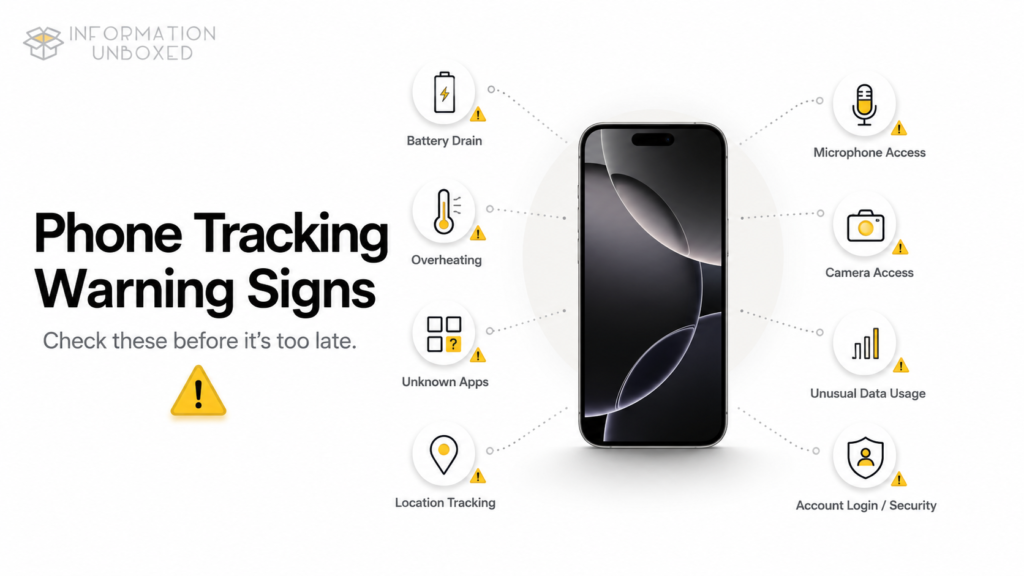
1. Your Battery Drains Much Faster Than Usual
If your phone battery suddenly drains very quickly, it could be because an app is running in the background. Tracking apps, GPS-based apps, or spyware may use location, data, microphone, camera, or background activity more than normal.
However, battery drain alone does not prove tracking. It can also happen due to old battery health, gaming, video calls, poor network, screen brightness, or buggy apps.
What to check:
Go to your phone’s battery usage settings and see which apps are consuming the most battery.
On Android:
Settings > Battery > Battery Usage
On iPhone:
Settings > Battery
Look for apps you do not recognize or apps using unusually high battery in the background.
2. Your Phone Gets Hot Even When You Are Not Using It
A phone can heat up while charging, gaming, using mobile data, recording videos, or being under direct sunlight. But if your phone gets hot even when it is idle, something may be running in the background.
Tracking apps or suspicious background processes may keep using GPS, data, or other sensors.
What to check:
Close all apps, restart your phone, and check if heating continues. Also review battery usage and app permissions.
Internal link to add here:
Also read our guide on why your phone heats up and how to fix it to understand the common causes of phone overheating.
3. You See Unknown Apps Installed on Your Phone
One of the biggest warning signs is finding apps you do not remember installing. Some tracking or monitoring apps may use harmless-looking names, icons, or system-style labels.
Look for apps with names like:
- System Service
- Device Health
- Sync Service
- Phone Manager
- Parental Control
- Tracker
- Monitor
- Location Service
Not every unfamiliar app is dangerous, but you should investigate anything you do not recognize.
What to check on Android:
Go to Settings > Apps > See all apps and review the full list.
What to check on iPhone:
Check your App Library and go to Settings > General > iPhone Storage to review installed apps.
If you see an app you do not recognize, search its name carefully before deleting it.
4. Apps Have Permissions They Should Not Need
Some apps need location, microphone, camera, contacts, or SMS permissions to work. But a calculator app, flashlight app, wallpaper app, or random game should not need access to your location, microphone, call logs, or messages.
Suspicious permissions can be a red flag.
Check app permissions on Android:
Go to Settings > Privacy > Permission Manager
Check app permissions on iPhone:
Go to Settings > Privacy & Security
Review access for:
- Location
- Camera
- Microphone
- Contacts
- Photos
- Bluetooth
- Local Network
- Motion & Fitness
Remove permissions that do not make sense.
5. Your Location Sharing Is Turned On Without You Realizing
Sometimes your phone is not “hacked” — your location is simply being shared through built-in features.
Check if you are sharing location through:
- Google Maps Location Sharing
- Apple Find My
- WhatsApp Live Location
- Snapchat Snap Map
- Family tracking apps
- Ride-sharing or delivery apps
- Social media apps
On iPhone:
Go to Settings > Privacy & Security > Location Services. Apple says Location Services can be turned on or off from this section.
Also check:
Find My app > People tab
On Android:
Check:
Google Maps > Profile picture > Location Sharing
Also check:
Settings > Location > App location permissions
6. You Notice Strange Data Usage
Tracking apps may send location, screenshots, call logs, or other information over the internet. If your mobile data usage suddenly increases without a clear reason, check which app is using the data.
On Android:
Go to Settings > Network & Internet > SIMs > App data usage
On iPhone:
Go to Settings > Cellular and scroll down to see data usage by app.
Look for unknown apps or apps using more data than expected.
7. You Receive Unknown Tracker Alerts
Someone may not need to install anything on your phone to track you. They could use a physical Bluetooth tracker hidden in your bag, car, or belongings.
Android supports unknown tracker alerts for compatible devices. Google says Android can notify users if an unknown Bluetooth tracker separated from its owner appears to be traveling with them. Users may also be able to play a sound to locate it.
How to check on Android:
Go to Settings > Safety & emergency > Unknown tracker alerts
Google also notes that Android users can manually scan for nearby trackers from this section.
On iPhone:
Open the Find My app and check alerts related to unknown accessories or AirTags moving with you.
If you find a physical tracker, do not ignore it. Save screenshots, note the location, and consider contacting local authorities if you feel unsafe.
8. Your Camera or Microphone Indicator Turns On Randomly
Modern phones show indicators when camera or microphone is being used. If you see the camera or microphone indicator without opening any app that needs it, check immediately.
On Android:
Look for green camera/mic indicators and check Privacy Dashboard.
On iPhone:
Look for the green or orange dot at the top of the screen.
Then go to privacy settings and review which app accessed camera or microphone recently.
9. Your Phone Behaves Strangely
Suspicious behavior may include:
- Apps opening by themselves
- Screen waking up randomly
- Phone restarting unexpectedly
- Strange pop-ups
- Unusual notifications
- Messages being read without you opening them
- Settings changing automatically
- New contacts or calendar entries appearing
One or two small glitches may not mean tracking. But repeated strange behavior should be checked seriously.
10. Your Google or Apple Account Shows Unknown Devices
Your phone may be secure, but your account may be logged in somewhere else. If someone has access to your Google or Apple account, they may be able to see location, backups, photos, emails, or device data depending on your settings.
Check Google account devices:
Go to myaccount.google.com/security and check Your devices.
Check Apple account devices:
On iPhone, go to Settings > Your Name and scroll down to see connected devices.
Remove devices you do not recognize and change your password.
11. Play Protect or Security Warnings Appear
On Android, Google Play Protect helps scan apps for harmful behavior.
You can read Google’s official Play Protect guide here: https://support.google.com/googleplay/answer/2812853
Google says Play Protect checks apps before download, checks the device for potentially harmful apps, warns users about harmful apps, and may deactivate or remove harmful apps.
How to check Play Protect:
Open Google Play Store > Profile icon > Play Protect > Scan
Keep Play Protect turned on. Avoid installing APK files from random websites unless you fully trust the source.
12. Someone Seems to Know Things They Shouldn’t
This is not technical, but it matters. If someone repeatedly knows where you were, who you spoke to, what you typed, or private things from your phone, take it seriously.
The FTC explains that stalkerware can be used to secretly track or monitor someone, and depending on the app, it may monitor physical movements, phone activity, or online activity.
If you are in a controlling or unsafe relationship, do not immediately confront the person if that could put you at risk. Use a trusted device to seek help and make a safety plan.
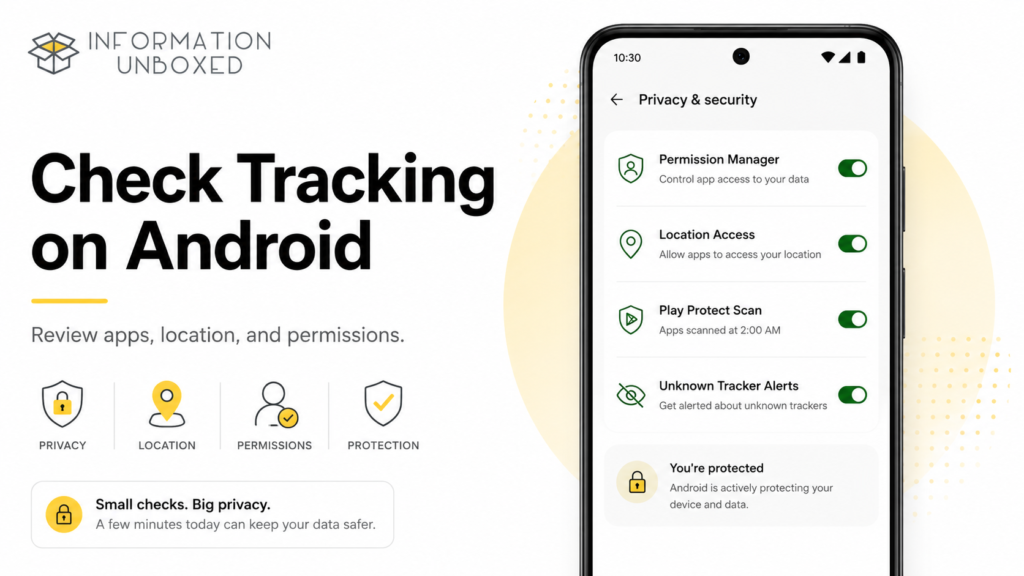
How to Check if Your Phone Is Being Tracked on Android
Follow this Android checklist:
Step 1: Check Unknown Apps
Go to:
Settings > Apps > See all apps
Remove apps you do not recognize after confirming they are not system apps.
Step 2: Review Permissions
Go to:
Settings > Privacy > Permission Manager
Pay special attention to location, microphone, camera, SMS, contacts, and accessibility permissions.
Step 3: Check Location Permissions
Go to:
Settings > Location > App location permissions
Change suspicious apps to Don’t allow or Allow only while using the app.
Step 4: Run Google Play Protect
Open:
Play Store > Profile icon > Play Protect > Scan
Play Protect is built to scan for harmful apps and warn users about potentially harmful behavior.
Step 5: Check Unknown Tracker Alerts
Go to:
Settings > Safety & emergency > Unknown tracker alerts
Manually scan if you suspect a Bluetooth tracker may be nearby.
Step 6: Check Connected Google Devices
Go to:
myaccount.google.com/security
Remove unknown devices and change your password.
Step 7: Check Accessibility Access
Go to:
Settings > Accessibility
Some harmful apps abuse accessibility access to monitor activity or control parts of the phone. Disable access for apps you do not trust.
How to Check if Your Phone Is Being Tracked on iPhone
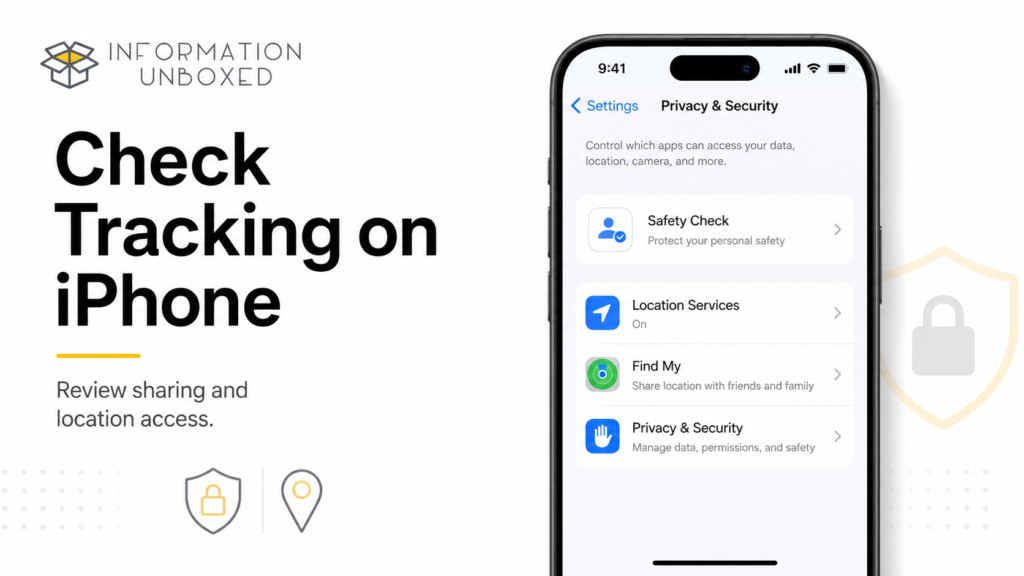
Follow this iPhone checklist:
Step 1: Use Safety Check
On iPhone, go to:
Settings > Privacy & Security > Safety Check
Apple says Safety Check helps users quickly review, update, and stop sharing information with people and apps.
Use this if you want to review who can see your location, shared data, or connected access.
Step 2: Check Location Services
Go to:
Settings > Privacy & Security > Location Services
Review which apps can access your location. Apple says Location Services can be managed from this section.
Change apps to Never, Ask Next Time, or While Using the App where needed.
Step 3: Check Find My Location Sharing
Open:
Find My > People
Stop sharing location with anyone you do not want to share with.
Step 4: Check Apple Account Devices
Go to:
Settings > Your Name
Scroll down and remove devices you do not recognize.
Step 5: Check App Privacy Permissions
Go to:
Settings > Privacy & Security
Review access for location, microphone, camera, Bluetooth, photos, contacts, and local network.
Step 6: Turn On Lockdown Mode if You Are at High Risk
Lockdown Mode is an extreme protection feature meant for users who may be personally targeted by highly sophisticated digital threats. Apple says it can be turned on from Settings > Privacy & Security > Lockdown Mode.
Most people do not need Lockdown Mode, but it is useful to know if you believe you are at serious risk.
Quick Checklist: Is Your Phone Being Tracked?
| What to Check | Android | iPhone |
|---|
| Unknown apps | Settings > Apps | Settings > General > iPhone Storage |
| Location permissions | Settings > Location | Settings > Privacy & Security > Location Services |
| App permissions | Permission Manager | Privacy & Security |
| Account devices | Google Account Security | Settings > Your Name |
| Bluetooth trackers | Unknown tracker alerts | Find My alerts |
| Security scan | Play Protect | App Store + iOS security settings |
| Location sharing | Google Maps | Find My |
| High-risk safety tool | Play Protect + reset options | Safety Check + Lockdown Mode |
What to Do Immediately if You Think Your Phone Is Being Tracked
1. Do Not Panic or Delete Everything Immediately
First, take screenshots of suspicious apps, permissions, alerts, unknown devices, or tracker notifications. If the situation involves harassment or abuse, evidence may be important.
2. Change Your Account Passwords
Use a safe device if possible. Change passwords for:
- Google account
- Apple account
- Banking apps
- Cloud storage
Turn on two-factor authentication wherever possible.
3. Remove Unknown Devices
Remove unknown devices from your Google or Apple account.
4. Revoke Suspicious App Permissions
Remove location, microphone, camera, contacts, SMS, and accessibility permissions from apps you do not trust.
5. Delete Suspicious Apps
After checking and saving evidence, uninstall unknown or suspicious apps.
6. Update Your Phone
Install the latest software update.
On Android:
Settings > System > Software Update
On iPhone:
Settings > General > Software Update
7. Reset Location and Privacy Settings
On iPhone, you can reset location and privacy settings from reset options.
On Android, review permissions manually or reset app preferences depending on your phone model.
8. Factory Reset if Needed
If you strongly suspect spyware and cannot identify it, a factory reset may help. Back up important photos and files first, but avoid restoring suspicious apps from old backups.
9. Get Professional Help
If your safety is at risk, contact someone you trust, local authorities, or a cybercrime helpline. Do not rely only on online advice if you feel physically unsafe.
What Not to Do
Avoid these mistakes:
- Do not install random “anti-tracking” apps from unknown websites.
- Do not share OTPs, passwords, or screen access with anyone.
- Do not ignore unknown tracker alerts.
- Do not give location access to unnecessary apps.
- Do not keep old phones without updates for sensitive use.
- Do not confront someone immediately if it could put you in danger.
How to Prevent Phone Tracking in the Future
Use these habits regularly:
- Keep your phone locked with a strong passcode.
- Do not share your phone password with others.
- Keep Android or iOS updated.
- Download apps only from Play Store or App Store.
- Avoid unknown APK files.
- Check app permissions once a month.
- Turn off location access for apps that do not need it.
- Review Google and Apple account devices.
- Turn on two-factor authentication.
- Use WhatsApp privacy and two-step verification settings.
- Avoid clicking suspicious links.
- Keep Bluetooth off when not needed.
For better digital safety, also read our guide on how to stop spam calls on Android and iPhone.
Final Thoughts
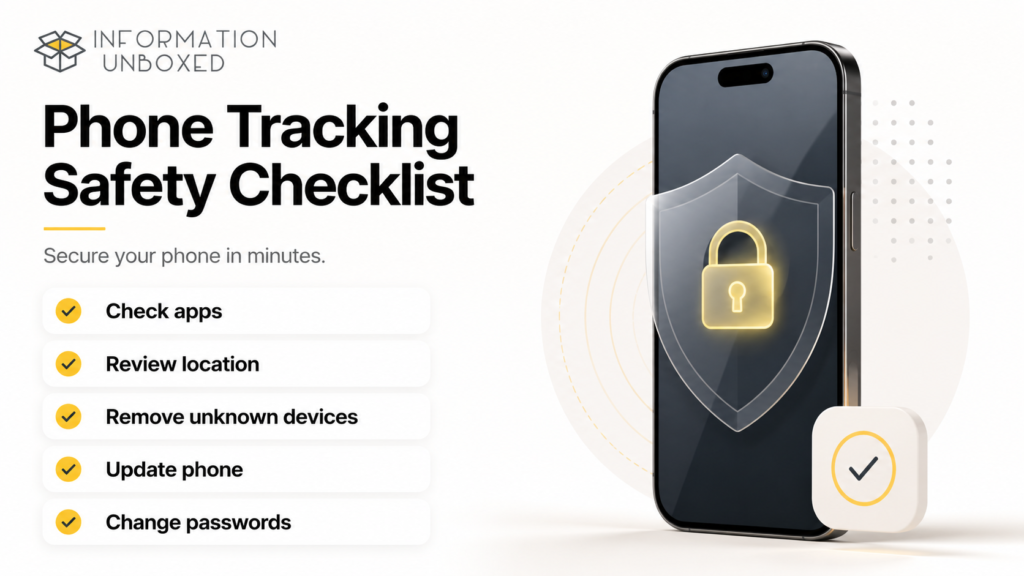
Learning how to check if your phone is being tracked is important for your privacy and safety. Most tracking signs are easy to miss because they look like normal phone problems: battery drain, heating, strange data usage, unknown apps, or location sharing.
Start with simple checks. Review app permissions, location sharing, unknown devices, installed apps, tracker alerts, and account security. Android users should run Play Protect and check Unknown Tracker Alerts. iPhone users should review Safety Check, Find My, Location Services, and Apple account devices.
Your phone contains your personal life. A few minutes of privacy checking can protect your location, conversations, photos, and accounts from unwanted access.
FAQs
1. How do I know if my phone is being tracked?
You may notice battery drain, overheating, unknown apps, strange data usage, location sharing, unknown account devices, or tracker alerts. Check app permissions, location settings, and account security.
2. Can someone track my phone without me knowing?
Yes, it is possible through location sharing, spyware, stalkerware, account access, or physical Bluetooth trackers. But many cases are caused by settings that users forgot were enabled.
3. How do I stop my phone from being tracked?
Turn off unnecessary location sharing, remove unknown apps, revoke suspicious permissions, change passwords, remove unknown account devices, update your phone, and run security checks.
4. Can Android detect hidden trackers?
Android supports unknown tracker alerts for compatible Bluetooth trackers and allows users to manually scan from safety settings.
5. Can iPhone detect if someone is tracking me?
iPhone can show location sharing, Find My sharing, app location access, and unknown accessory alerts. You can also use Safety Check to review and stop sharing access.
6. Does battery drain mean my phone is tracked?
Not always. Battery drain can happen due to old battery health, heavy apps, poor network, gaming, video calls, or background activity. But sudden unexplained battery drain should be checked.
7. Should I factory reset my phone if I suspect tracking?
If you strongly suspect spyware and cannot identify the problem, a factory reset may help. Before doing it, save important files, take screenshots of suspicious signs, and avoid restoring unknown apps from old backups.


Leave a Reply
Want to join the discussion?Feel free to contribute!