
10 Amazing Hidden WhatsApp Tricks Most People Don’t Know
Hidden WhatsApp tricks can make your daily chatting experience much smarter, safer, and more convenient. WhatsApp is one of the most used messaging apps in the world, but most people only use it for basic chatting, voice calls, video calls, photos, and status updates.
However, WhatsApp has many useful features that are often ignored or hidden inside settings. From locking private chats and silencing unknown callers to messaging yourself, pinning important messages, using disappearing messages, and protecting your IP address during calls, these small tricks can make a big difference.
In this guide, we will share 10 hidden WhatsApp tricks most people don’t know and explain how you can use them on Android and iPhone.
Also read our guide on how to stop spam calls on Android and iPhone to stay safer from unwanted calls and scams.

Why You Should Know These Hidden WhatsApp Tricks
WhatsApp is no longer just a simple messaging app. It now includes privacy controls, security features, productivity tools, and smart shortcuts that can help you manage conversations better.
These WhatsApp tricks can help you:
- Keep private chats safer
- Reduce spam and unknown calls
- Save important messages quickly
- Use WhatsApp like a personal notes app
- Make group chats more organized
- Improve privacy during calls
- Avoid unnecessary distractions
The best part is that most of these features are already available inside WhatsApp. You just need to know where to find them.
1. Lock Private Chats with Chat Lock
One of the most useful hidden WhatsApp tricks is Chat Lock. This feature lets you lock selected chats behind your phone’s passcode, fingerprint, or Face ID. Locked chats are hidden in a separate folder, which adds an extra layer of privacy if someone else uses your phone. WhatsApp officially explains that locked chats stay hidden behind authentication such as phone passcode, Face ID, fingerprint, or a secret code.
How to Use Chat Lock
Open the chat you want to lock, tap the contact or group name at the top, select Chat Lock, and turn it on. Depending on your phone, WhatsApp may ask for fingerprint, Face ID, or passcode confirmation.
Why This Trick Is Useful
This is helpful for personal conversations, financial discussions, private family chats, or any conversation you do not want visible on your main WhatsApp screen.
You can also read WhatsApp’s official guide on Chat Lock here: https://faq.whatsapp.com/764072925284841
Pro Tip: Use Chat Lock for sensitive chats instead of deleting conversations again and again.

2. Message Yourself for Notes, Links, and Reminders
WhatsApp can also work like a quick personal notes app. The Message Yourself feature lets you send notes, photos, links, documents, shopping lists, reminders, and ideas to your own WhatsApp chat. WhatsApp’s help page explains that users can forward or send messages to themselves for quick access later.
How to Use Message Yourself
Open WhatsApp, tap the new chat button, search for your own name or number, and start messaging yourself.
Best Ways to Use It
You can use it for grocery lists, blog ideas, quick reminders, travel documents, screenshots, important links, voice notes, and temporary notes.
This is one of the simplest but most practical WhatsApp tricks for daily life.

3. Pin Important Messages Inside a Chat
Sometimes important messages get lost in long chats, especially in family groups, office groups, school groups, and society groups. WhatsApp allows you to pin messages at the top of a chat so they stay easy to find. According to WhatsApp, you can pin up to three messages in a chat for 24 hours, 7 days, or 30 days.
How to Pin a WhatsApp Message
Long-press the message you want to pin, tap the three-dot menu if needed, select Pin, and choose the duration.
When to Use This Trick
Use it for addresses, meeting links, payment details, event information, school updates, travel plans, or important group announcements.
This trick is especially useful for group chats where messages move very fast.
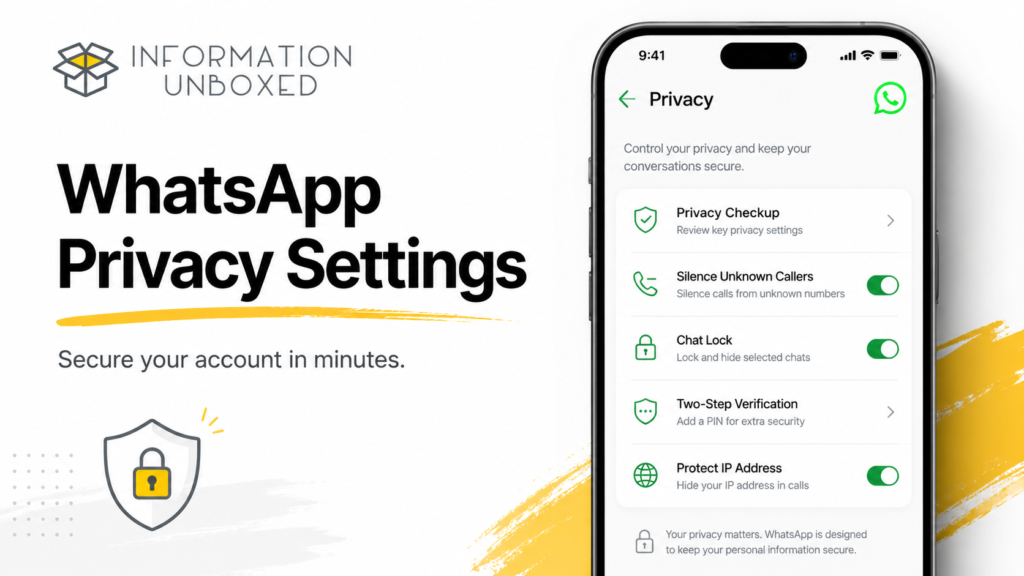
4. Silence Unknown WhatsApp Callers
Spam calls are not limited to regular phone calls anymore. Many people now receive unknown WhatsApp calls from random numbers. WhatsApp has a Silence Unknown Callers feature that helps automatically screen unknown calls. WhatsApp says these calls will not ring on your phone, but they will still appear in your Calls list in case the call was important.
How to Enable Silence Unknown Callers
Go to WhatsApp Settings > Privacy > Calls > Silence Unknown Callers and turn it on.
Why This Is Important
This feature is useful for avoiding spam calls, scam calls, unknown international calls, and unnecessary interruptions.
Safety Tip: If an unknown caller asks for OTP, bank details, passwords, or screen sharing, disconnect immediately.
5. Protect Your IP Address During WhatsApp Calls
This is one of the most underrated WhatsApp privacy tricks. WhatsApp has a feature called Protect IP Address in Calls. When enabled, your calls are relayed through WhatsApp’s servers, which helps hide your IP address from the other person on the call. WhatsApp notes that enabling this feature may slightly affect call quality because calls are routed through its servers.
How to Turn It On
Go to WhatsApp Settings > Privacy > Advanced > Protect IP Address in Calls and enable it.
Who Should Use It
This feature is useful if you receive calls from unknown people, online buyers or sellers, business contacts, or anyone you do not know personally.
It gives you an additional layer of privacy while using WhatsApp calls.
6. Use Disappearing Messages for Cleaner Chats
Disappearing messages can automatically remove messages after a selected time period. WhatsApp says users can set disappearing messages by default for new individual chats using the default message timer.
How to Enable Disappearing Messages
Open WhatsApp, go to Settings > Privacy > Default Message Timer, and choose a duration. You can also enable it for a specific chat by opening the chat, tapping the contact or group name, and selecting Disappearing Messages.
When to Use This Trick
Use it for temporary conversations, planning discussions, casual chats, or groups where you do not want messages to pile up forever.
Important: This does not guarantee complete privacy because someone can still take screenshots or forward information before messages disappear.
7. Use WhatsApp Polls in Groups
WhatsApp polls are perfect when you want quick decisions in groups. Instead of reading hundreds of replies, you can create a poll and let everyone vote. WhatsApp’s official help page says poll questions can be added inside chats, and poll questions are limited to 255 characters.
How to Create a WhatsApp Poll
Open a chat or group, tap the attachment icon, select Poll, type your question, add options, and send it.
Best Uses for Polls
Use polls for deciding dinner plans, group travel dates, meeting times, school activities, society decisions, office choices, or family events.
This is one of the best WhatsApp tricks for group management.
8. Use Privacy Checkup to Secure Your Account
WhatsApp has a Privacy Checkup feature that guides you through important privacy settings in one place. WhatsApp says users can open Privacy Checkup from Settings > Privacy and adjust privacy options section by section.
How to Use Privacy Checkup
Go to WhatsApp Settings > Privacy > Privacy Checkup. Review options related to who can contact you, who can see your personal information, and how to add more privacy to your chats.
Why You Should Use It
This is useful because many people never check their privacy settings after installing WhatsApp. Privacy Checkup helps you review everything quickly.
You can control profile photo visibility, last seen, online status, group permissions, calls, and more from privacy settings.
9. Pin Important Chats to the Top
Apart from pinning messages inside a chat, WhatsApp also lets you pin entire chats at the top of your chat list. According to WhatsApp, pinning chats helps keep selected chats at the top so you can find them quickly.
How to Pin a Chat
On Android, long-press the chat and tap the pin icon.
On iPhone, swipe right on the chat and tap Pin.
When to Use This Trick
Pin your spouse’s chat, family group, office group, child’s school group, business customer chat, or any conversation you open frequently.
This saves time and prevents important chats from getting buried under random messages.
10. Turn On Two-Step Verification
Two-step verification adds an extra security layer to your WhatsApp account. WhatsApp recommends activating two-step verification to add a unique PIN for extra protection.
How to Enable Two-Step Verification
Go to WhatsApp Settings > Account > Two-Step Verification, create a PIN, and add an email address for recovery.
Why This Matters
If someone tries to set up your WhatsApp account on another phone, this PIN can help protect your account from unauthorized access.
This is one of the most important WhatsApp security tricks everyone should use.
Quick Summary: 10 Hidden WhatsApp Tricks
| No. | WhatsApp Trick | Best For |
|---|---|---|
| 1 | Chat Lock | Hiding private chats |
| 2 | Message Yourself | Notes and reminders |
| 3 | Pin Messages | Saving important info |
| 4 | Silence Unknown Callers | Avoiding spam calls |
| 5 | Protect IP Address in Calls | Better call privacy |
| 6 | Disappearing Messages | Cleaner chats |
| 7 | Polls | Group decisions |
| 8 | Privacy Checkup | Account privacy |
| 9 | Pin Chats | Quick access |
| 10 | Two-Step Verification | Account security |
Bonus WhatsApp Tips You Should Also Try
Format Your Text
You can make WhatsApp messages easier to read using formatting like bold, italic, strikethrough, and monospace. This is useful for announcements, lists, and important messages.
Archive Noisy Chats
If a chat is not important but you do not want to delete it, archive it. This keeps your main chat list cleaner.
Control Who Adds You to Groups
In privacy settings, you can control who can add you to WhatsApp groups. This helps reduce random group spam and unwanted promotional groups.
Review Linked Devices
Go to Linked Devices and check where your WhatsApp account is logged in. Remove any device you do not recognize.



Leave a Reply
Want to join the discussion?Feel free to contribute!