
7 Easy Ways to Stop Spam Calls on Android & iPhone
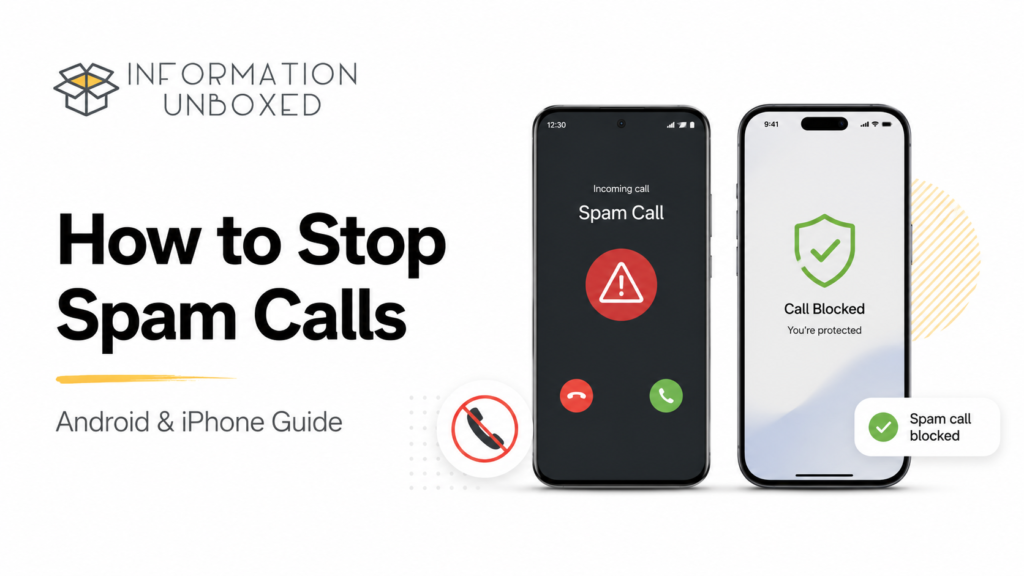
How to stop spam calls is one of the most common questions for smartphone users today. Whether you use an Android phone or an iPhone, unwanted spam calls, fake offers, robocalls, and scam calls can disturb your day and even put your personal information at risk.
The good news is that you can reduce spam calls using built-in phone settings, caller ID protection, call blocking, spam reporting, and DND services. In this guide, we will explain how to stop spam calls on Android and iPhone using simple, safe, and effective methods.
Also read our detailed guide on smartphone heating causes and fixes to keep your phone safe from overheating and performance issues.
In this guide, we will explain how to stop spam calls on Android and iPhone using simple and safe methods.
Why Do You Keep Getting Spam Calls?
Spam calls usually happen when your number is collected from online forms, shopping websites, loan apps, delivery apps, financial services, public databases, or data leaks. Sometimes, you may also receive spam calls because you previously interacted with marketing calls or shared your number while signing up for offers.
Common types of spam calls include:
- Loan and credit card offers
- Insurance and investment promotions
- Fake bank or KYC calls
- Robocalls and automated messages
- Fraud calls pretending to be customer care
- Fake delivery, lottery, or job calls
Not every unknown call is dangerous, but repeated calls from suspicious numbers should be blocked or reported.
How to Stop Spam Calls on Android
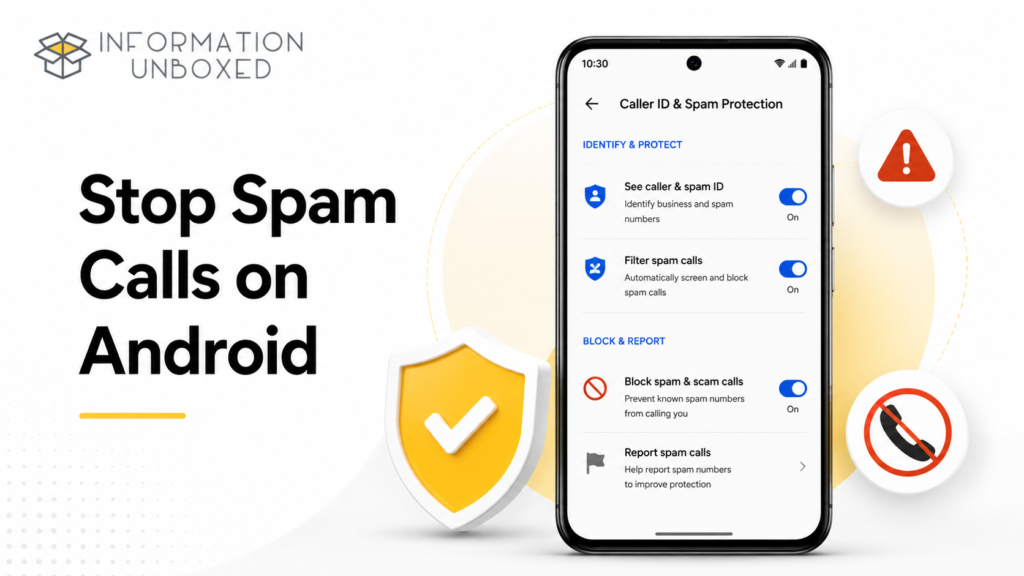
Most Android phones come with spam protection features, especially if you use the Google Phone app. Google says Caller ID and spam protection can show warnings about suspicious callers and help block unwanted numbers.
1. Turn On Caller ID & Spam Protection
On most Android phones:
- Open the Phone app.
- Tap the three dots in the top-right corner.
- Go to Settings.
- Tap Caller ID & Spam or Spam and Call Screen.
- Turn on See caller and spam ID.
- Turn on Filter spam calls, if available.
This helps your phone identify suspected spam callers before you answer.
2. Block a Spam Number Manually
If one number keeps calling repeatedly:
- Open the Phone app.
- Go to Recent calls.
- Tap the suspicious number.
- Tap Block or Block/report spam.
- Confirm the action.
This prevents that specific number from calling you again.
3. Use Built-in Spam Protection on Samsung Phones
If you use a Samsung Galaxy phone:
- Open the Phone app.
- Tap the three dots.
- Go to Settings.
- Tap Caller ID and spam protection.
- Turn it on.
Some Samsung phones also support Smart Call features depending on your region and carrier.
4. Avoid Answering Suspicious Unknown Numbers
If a number looks suspicious, unknown, or international without reason, avoid answering it. If it is important, the caller will usually call again, send a message, or contact you through another verified method.
5. Report Spam Calls
When Android shows the option to report a number as spam, use it. Reporting helps improve spam detection for everyone using the same caller ID system.
How to Stop Spam Calls on iPhone
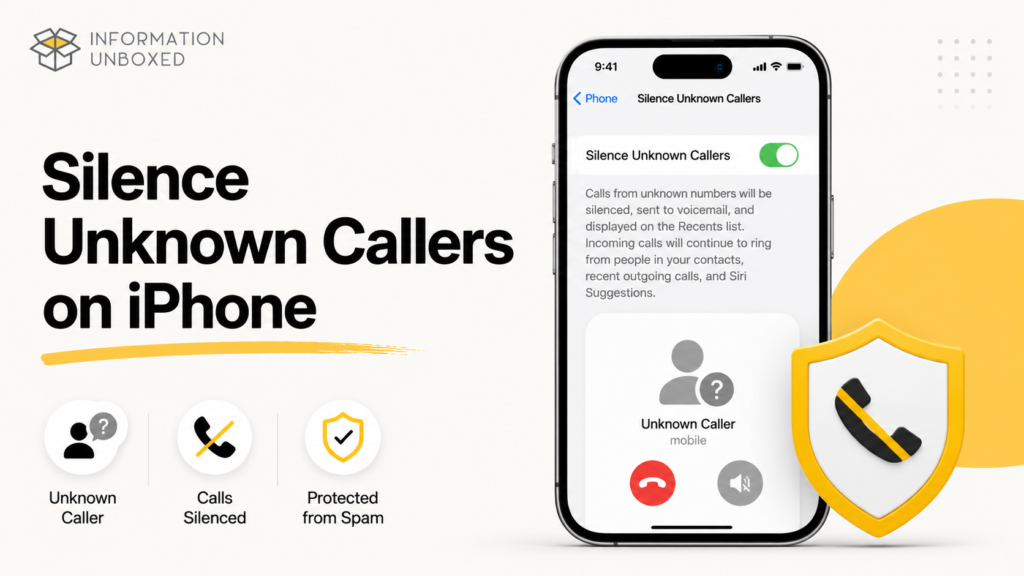
Apple provides options to silence unknown callers and filter spam calls. On supported iPhone settings, calls identified as spam or fraud by your carrier can be silenced and moved to a spam list.
1. Silence Unknown Callers on iPhone
To silence calls from unknown numbers:
- Open Settings.
- Tap Apps.
- Tap Phone.
- Look for Unknown Callers or Silence Unknown Callers.
- Turn it on.
When enabled, calls from unknown numbers may be silenced and sent away from your normal incoming call flow. Calls from saved contacts can still come through.
2. Enable Spam Call Filtering
On supported iPhones and carriers:
- Open Settings.
- Tap Apps.
- Tap Phone.
- Go to Call Filtering or related call-blocking settings.
- Turn on available spam filtering options.
This can help silence calls identified as spam or fraud by your carrier.
3. Block a Number on iPhone
To block a repeated spam caller:
- Open the Phone app.
- Tap Recents.
- Tap the i icon next to the number.
- Scroll down and tap Block Caller.
- Confirm.
This blocks calls, messages, and FaceTime from that number.
4. Use iPhone Call Blocking Apps Carefully
iPhone allows third-party call identification apps, but you should only use trusted apps from the App Store. Avoid giving unnecessary permissions to unknown apps because caller ID apps may need access to call-related data to work properly.
Register for DND to Reduce Promotional Calls in India
If you are in India, you can register for DND services to reduce unwanted promotional calls and messages. TRAI allows users to register, modify, or manage communication preferences through options like calling or sending SMS to 1909, and also through the TRAI DND app.
You can use:
- SMS to 1909
- Call to 1909
- TRAI DND app
- DND preference registration options
This may not stop every spam call immediately, but it can reduce promotional calls over time.
Should You Use Spam Call Blocking Apps?
Spam call blocking apps can be helpful, but choose carefully. Popular apps can identify callers, show spam warnings, and block known telemarketers. However, they may ask for permissions related to calls, contacts, or messages.
Before using any app:
- Check app ratings and reviews
- Download only from Play Store or App Store
- Avoid unknown APK files
- Review app permissions
- Do not share OTPs or banking details through calls
- Avoid apps that ask for unnecessary access
Built-in Android and iPhone spam protection should be your first option. Use third-party apps only if spam calls are still frequent.
What Not to Do When You Receive a Spam Call
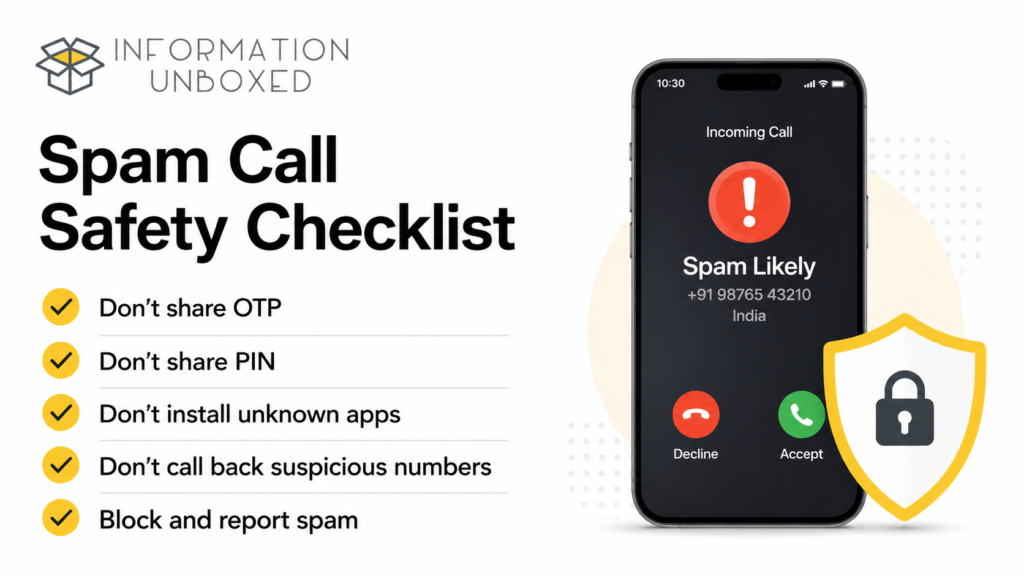
Spam calls are not just irritating; some can be scams. Follow these safety rules:
- Do not share OTPs, PINs, passwords, or card details.
- Do not press random numbers during robocalls.
- Do not call back unknown international numbers.
- Do not install apps suggested by unknown callers.
- Do not open links sent after suspicious calls.
- Do not share screen access with unknown callers.
- Disconnect immediately if someone creates urgency or fear.
A genuine bank, government office, or trusted company will not ask for your OTP, PIN, or password on a call.
Best Settings to Stop Spam Calls
Here is a quick checklist:
| Device | Setting to Enable |
|---|---|
| Android | Caller ID & Spam Protection |
| Android | Filter Spam Calls |
| Android | Block/report spam numbers |
| Samsung | Caller ID and Spam Protection |
| iPhone | Silence Unknown Callers |
| iPhone | Spam/Call Filtering |
| India | Register DND via 1909 or TRAI DND |
Why Spam Calls Still Come Even After Blocking
Blocking one number does not always stop spam completely because spammers often use multiple numbers. Some even use number spoofing, where the number shown on your phone may not be the real caller’s number.
That is why the best approach is to combine multiple methods:
- Enable spam protection
- Block repeated callers
- Report spam numbers
- Register for DND
- Avoid answering suspicious calls
- Never share sensitive information
Helpful Resources to Stop Spam Calls
To understand how to stop spam calls more effectively, you can also check official resources from trusted platforms. Android users can read Google’s official guide on Caller ID and spam protection, which explains how to turn on spam detection and filter spam calls. iPhone users can follow Apple’s official guide to screen, silence, and block unknown callers. If you live in India, you can also register or manage your DND preferences through TRAI’s official DND services.
- Google Caller ID & Spam Protection Guide
https://support.google.com/phoneapp/answer/3459196?hl=en - Apple Guide to Manage Unknown Callers on iPhone
https://support.apple.com/en-in/111106 - TRAI DND Preference Registration
https://www.trai.gov.in/preference-registration - TRAI DND App Information
https://www.trai.gov.in/portals-apps/trai-apps
Final Thoughts
Spam calls may not stop completely, but you can reduce them significantly by using the right phone settings. Android users should enable Caller ID and spam protection, while iPhone users should turn on Silence Unknown Callers and available spam filtering options.
If you live in India, registering for DND through 1909 or the TRAI DND app can also help reduce promotional calls. Most importantly, stay alert and never share OTPs, passwords, banking details, or personal information with unknown callers.
A few simple settings can make your phone much quieter, safer, and less annoying.
FAQs
1. How do I stop spam calls permanently?
You may not be able to stop every spam call permanently, but you can reduce them by enabling spam protection, blocking numbers, reporting spam, and registering for DND services.
2. How do I stop spam calls on Android?
Open the Phone app, go to Settings, enable Caller ID & Spam, and turn on spam call filtering if available.
3. How do I stop spam calls on iPhone?
Go to Settings, open Phone settings, and enable Silence Unknown Callers or available spam filtering options.
4. Is it safe to use spam call blocker apps?
Trusted apps from the Play Store or App Store can be useful, but always check permissions, reviews, and privacy settings before using them.
5. What is the DND number in India?
In India, users can register or manage DND preferences by calling or sending SMS to 1909.


Leave a Reply
Want to join the discussion?Feel free to contribute!